How to Use TokenTax with VS Code

 Expert verified
TokenTax content follows strict guidelines for editorial accuracy and integrity. We do not accept money from third party sites, so we can give you the most unbiased and accurate information possible.

Why trust our crypto tax experts
Last tested: November 2026 | VS Code on macOS with GitHub Copilot Agent, Auto model selection (GPT-6 Luna), and a TokenTax test account
Connecting TokenTax to Visual Studio Code (VS Code) lets you check capital gains, investigate transactions, compare a 1099-DA with your records, and export crypto tax data to local files. The integration works through the TokenTax MCP server, which allows AI assistants such as GitHub Copilot to access your TokenTax data directly within VS Code.
This guide walks through the setup using GitHub Copilot, including the results of our hands-on testing. You'll need a paid TokenTax plan and access to GitHub Copilot.
What you can do with TokenTax in VS Code
GitHub Copilot's Agent mode can use TokenTax's MCP tools alongside VS Code's tools to read and write local files. That means Copilot can retrieve information from your TokenTax account and save the results in your project.
In our November 2026 tests, Copilot could:
Report capital gains. It retrieved a $678.93 short-term loss and $4,283.35 long-term gain for 2026, matching TokenTax's report.
Investigate taxable sales. It identified a July 2025 BTC sale with a $9,180.50 taxable gain and retrieved the calculated cost basis of an ETH sale.
Reconcile a 1099-DA. It compared seven sales on a sample Coinbase form with TokenTax, finding a proceeds discrepancy and a missing transaction.
Export transactions. It saved 10 SOL transactions, represented by 15 transfer-leg rows, to a CSV in the project folder.
Investigate possible transfers. It compared a Kraken withdrawal and Phantom deposit without incorrectly identifying them as a confirmed linked transfer.
Our testing used VS Code on macOS, GitHub Copilot in Agent mode, and a TokenTax account containing synthetic transactions.
What you need before you connect VS Code to TokenTax
Before connecting, make sure you have:
A paid TokenTax plan. MCP access requires a paid subscription. Full functionality requires a plan covering the current tax year.
Your transactions imported into TokenTax. Import your exchanges and wallets and let any pending recalculation finish before asking about your gains.
VS Code with GitHub Copilot. Sign in with a GitHub account that has Copilot access. Copilot Free supports MCP, while Business and Enterprise accounts may require an administrator to enable the MCP servers in Copilot policy.
A local project folder. Copilot can read supporting documents and save exported files here. Add a 1099-DA PDF if you plan to run the reconciliation prompts.
How to use TokenTax with VS Code: Add the MCP server
We tested two connection methods: Copilot Global and the project-specific configuration shown on the TokenTax landing page. Both successfully connected to TokenTax.
We recommend Copilot Global for most users. VS Code handles the configuration automatically, and the connection is available across your workspaces rather than being limited to one project.
These instructions follow VS Code's official MCP setup documentation.
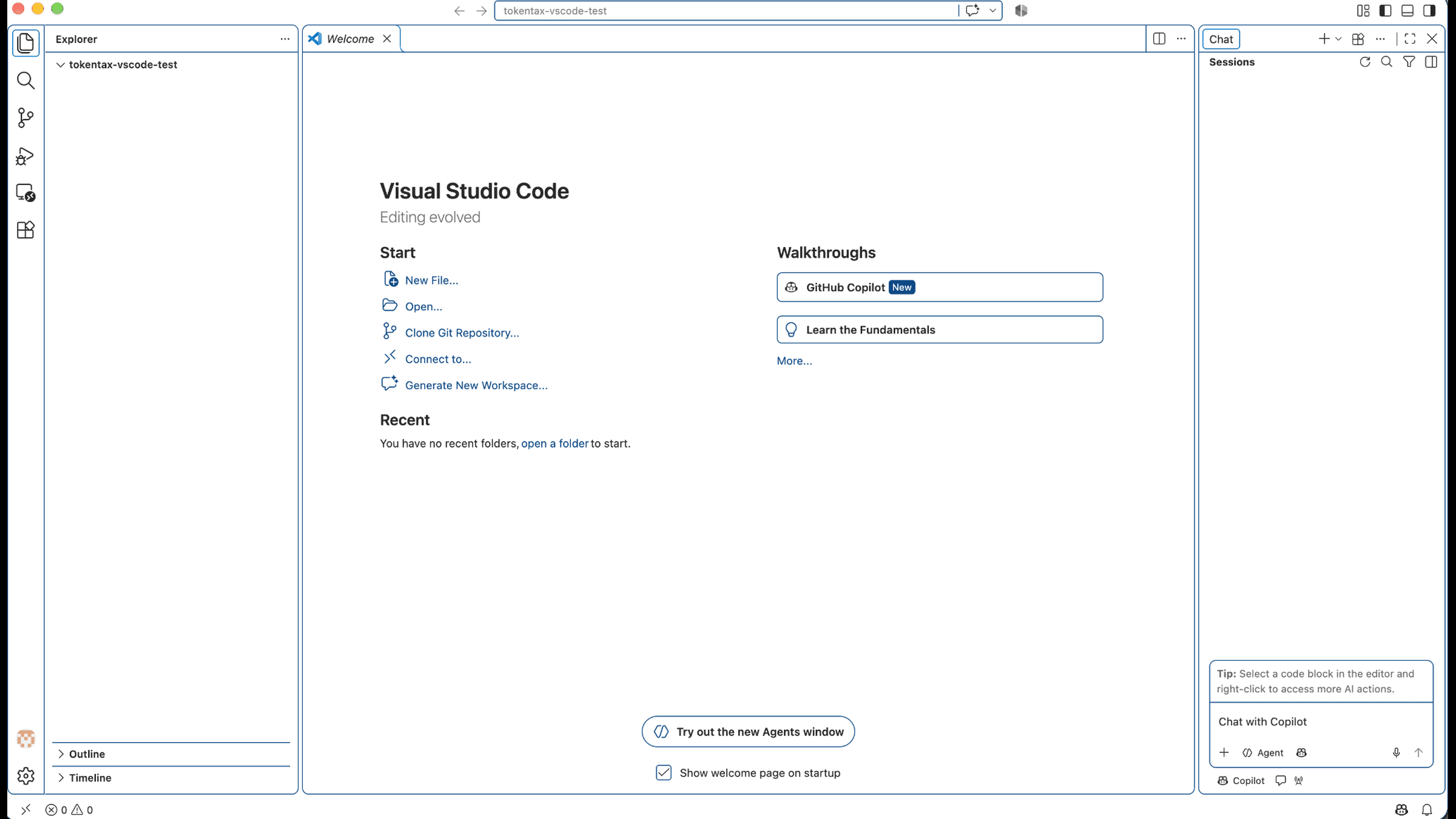
Step 1: Sign in to Copilot and open a folder
Open VS Code and sign in to GitHub Copilot if prompted.
Select File > Open Folder and choose a local project folder. For our tests, we created tokentax-vscode-test to hold a sample 1099-DA and the files Copilot exported.
If VS Code asks whether you trust the folder, review it before selecting Yes, I trust the authors.
Step 2: Add the TokenTax MCP server
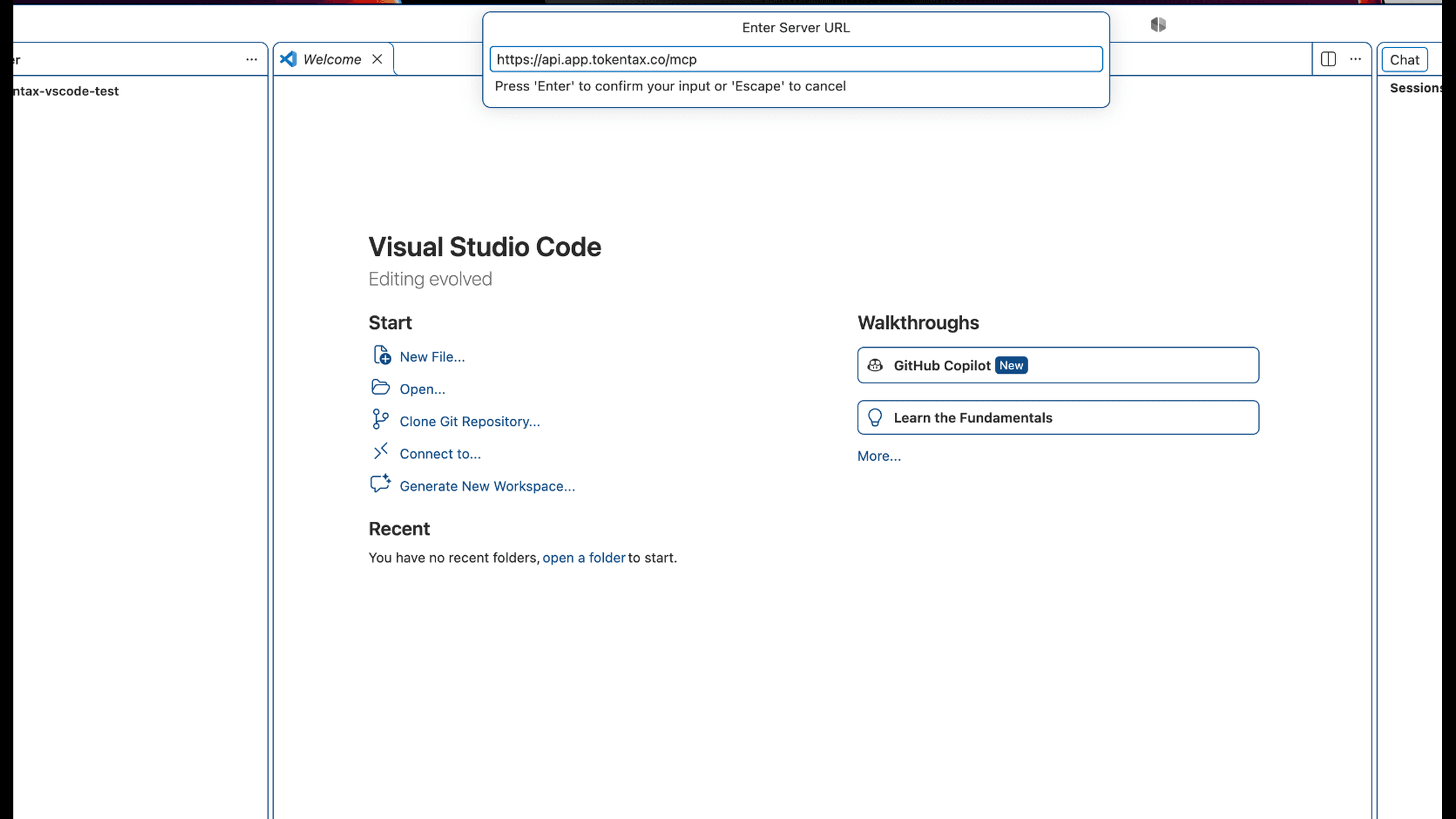
Open the Command Palette with Shift+Command+P on macOS or Ctrl+Shift+P on Windows and Linux.
Run MCP: Add Server and select HTTP (HTTP or Server-Sent Events).
Paste the TokenTax MCP server URL:
https://api.app.tokentax.co/mcp
You can also copy the server URL from our setup page.
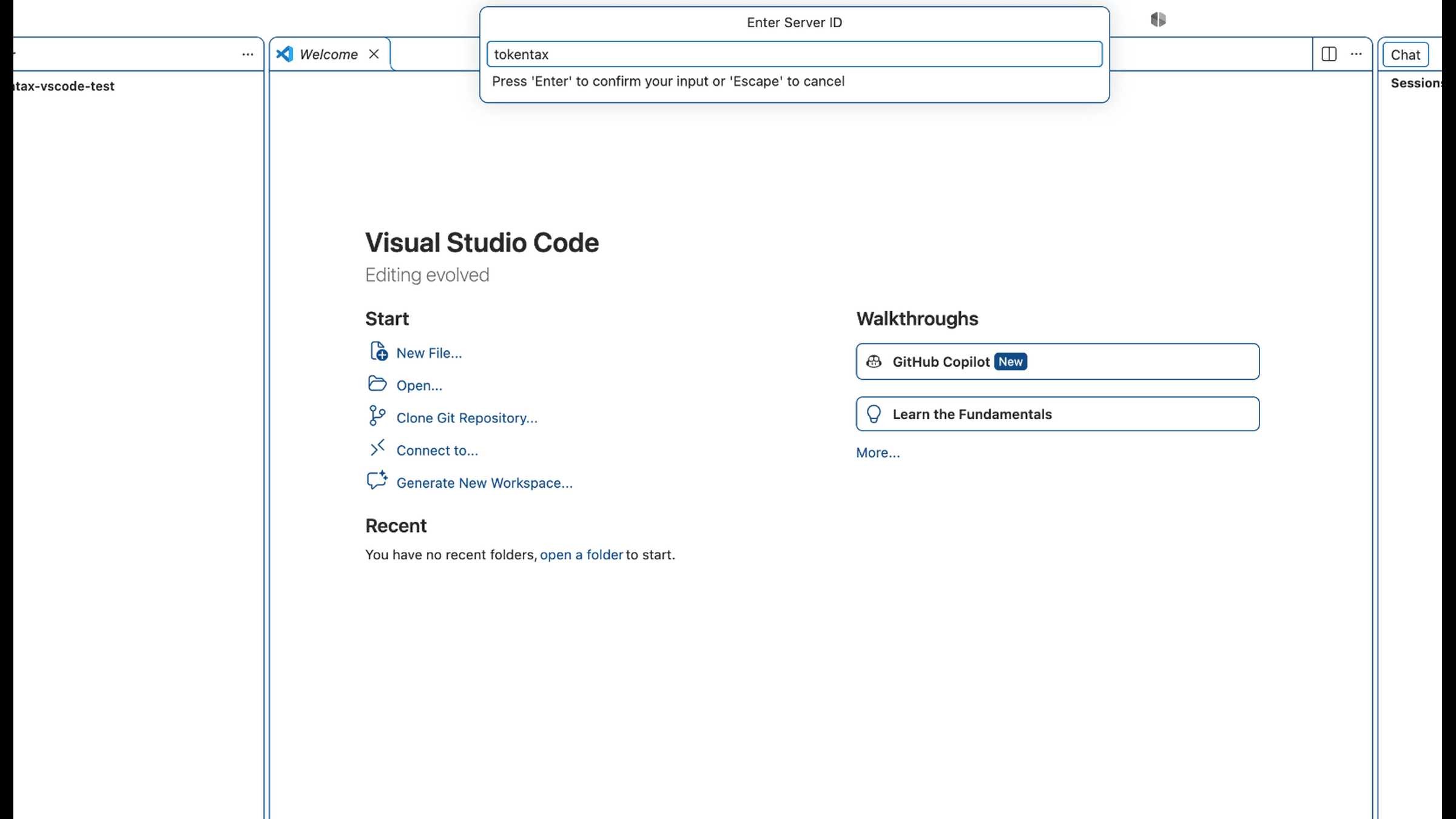
Step 3: Enter tokentax as the server ID
When VS Code requests a server ID, enter tokentax and press Enter.
This identifies the TokenTax server in your VS Code configuration.
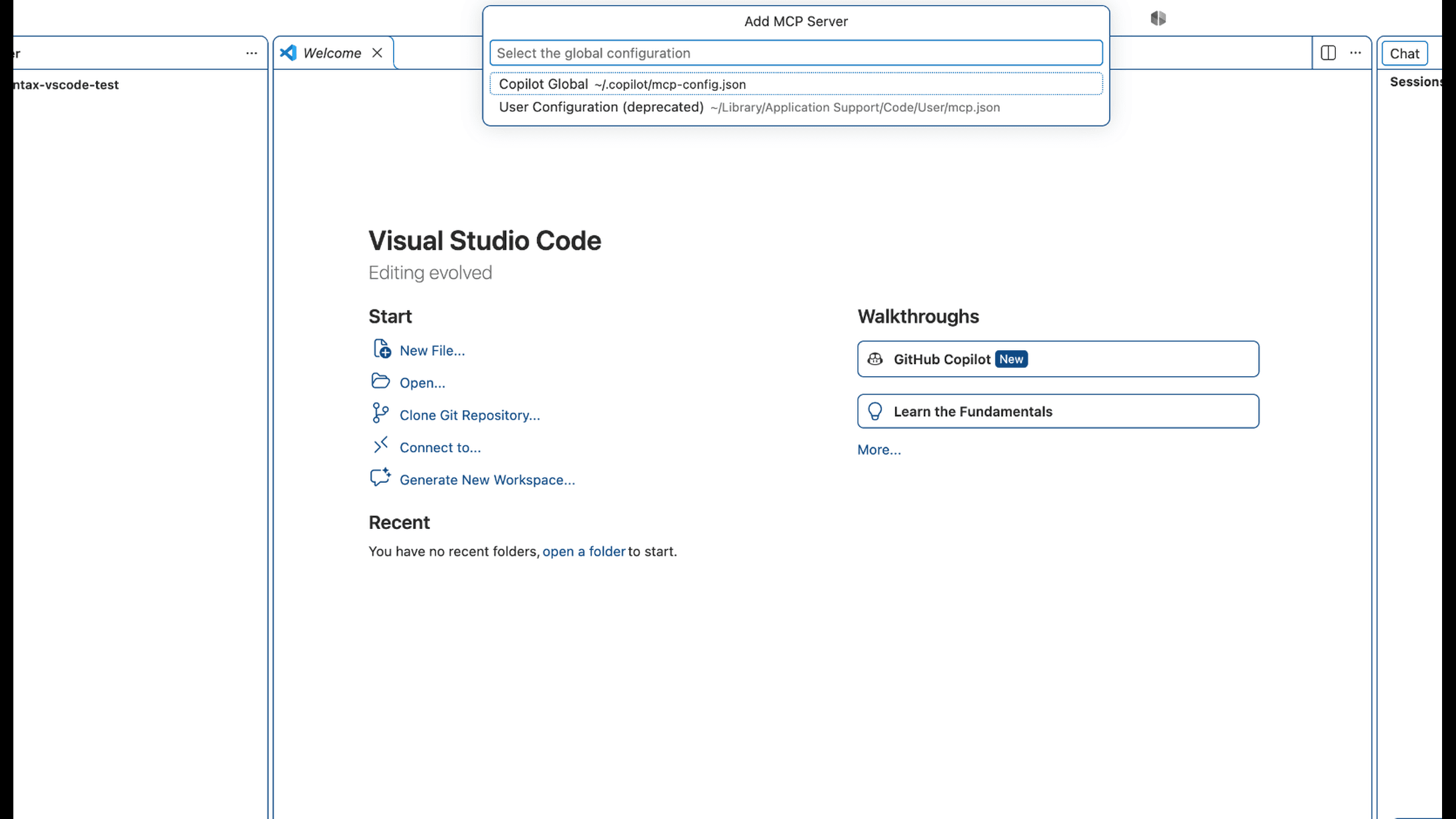
Step 4: Save TokenTax to Copilot Global
Select Global, then Copilot Global.
By default, VS Code saves the connection to ~/.copilot/mcp-config.json, making TokenTax available across your workspaces. If you've customized the COPILOT_HOME environment variable, the configuration is saved under that directory instead.
In our test, VS Code generated this configuration automatically:
{
"mcpServers": {
"tokentax": {
"tools": ["*"],
"type": "http",
"url": "https://api.app.tokentax.co/mcp"
}
}
}
You don't need to create or edit this file during the normal installation.
Step 5: Start TokenTax and authorize the connection
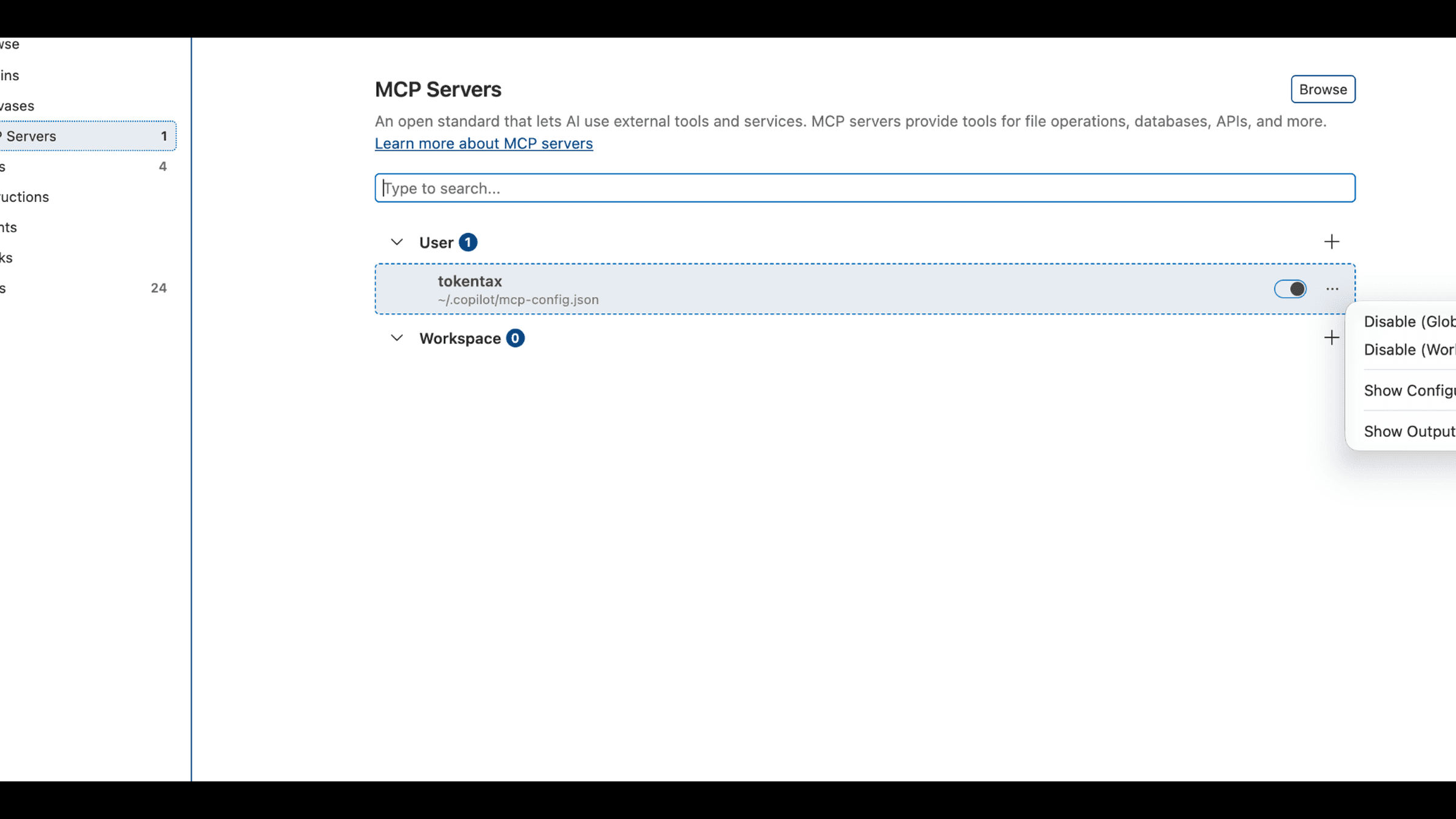
Open Chat: Open Customizations > MCP Servers and find tokentax under User.
Click Start.
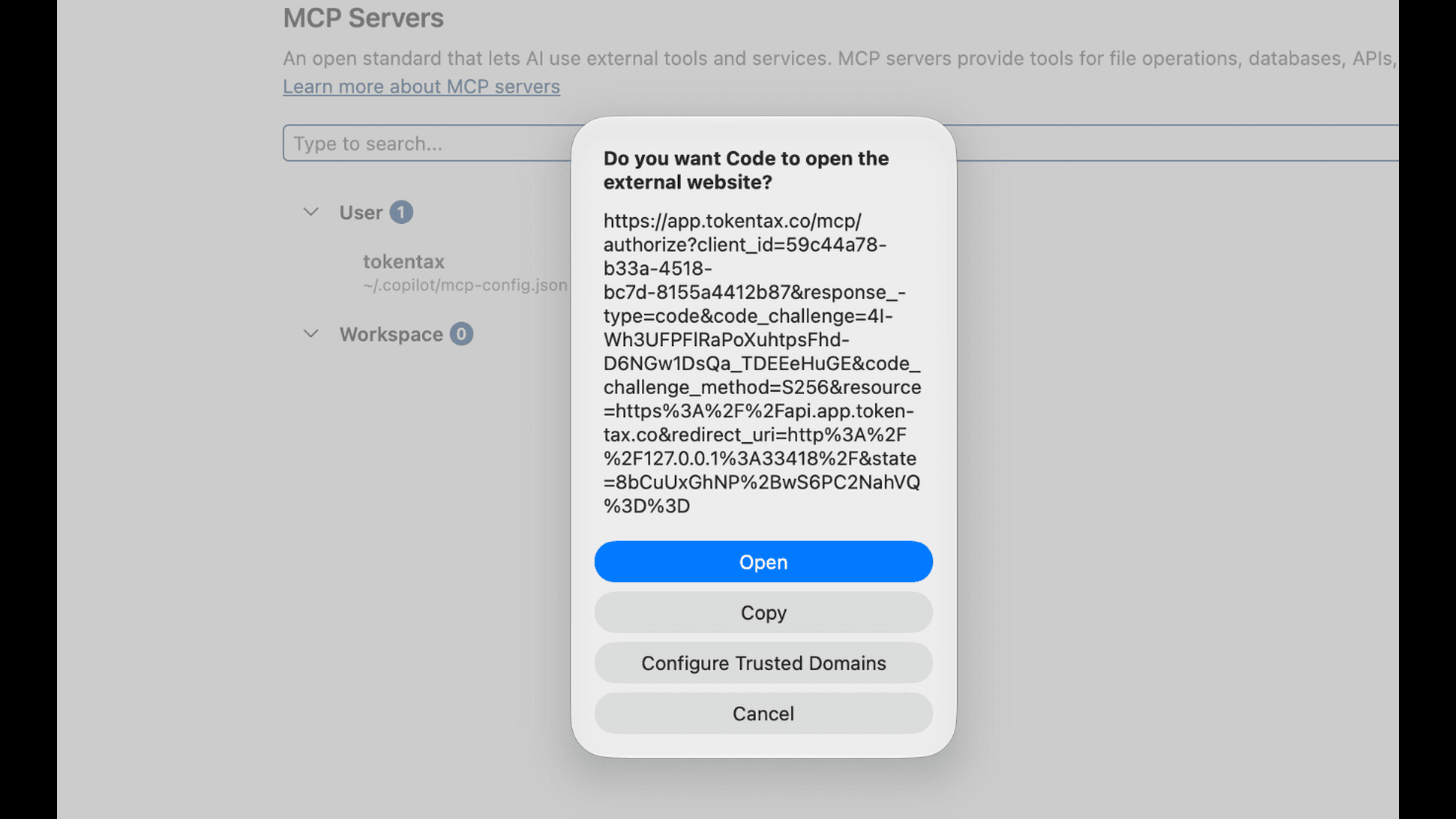
VS Code may ask whether it can open an external website. In our test, selecting Open launched TokenTax's authorization page.
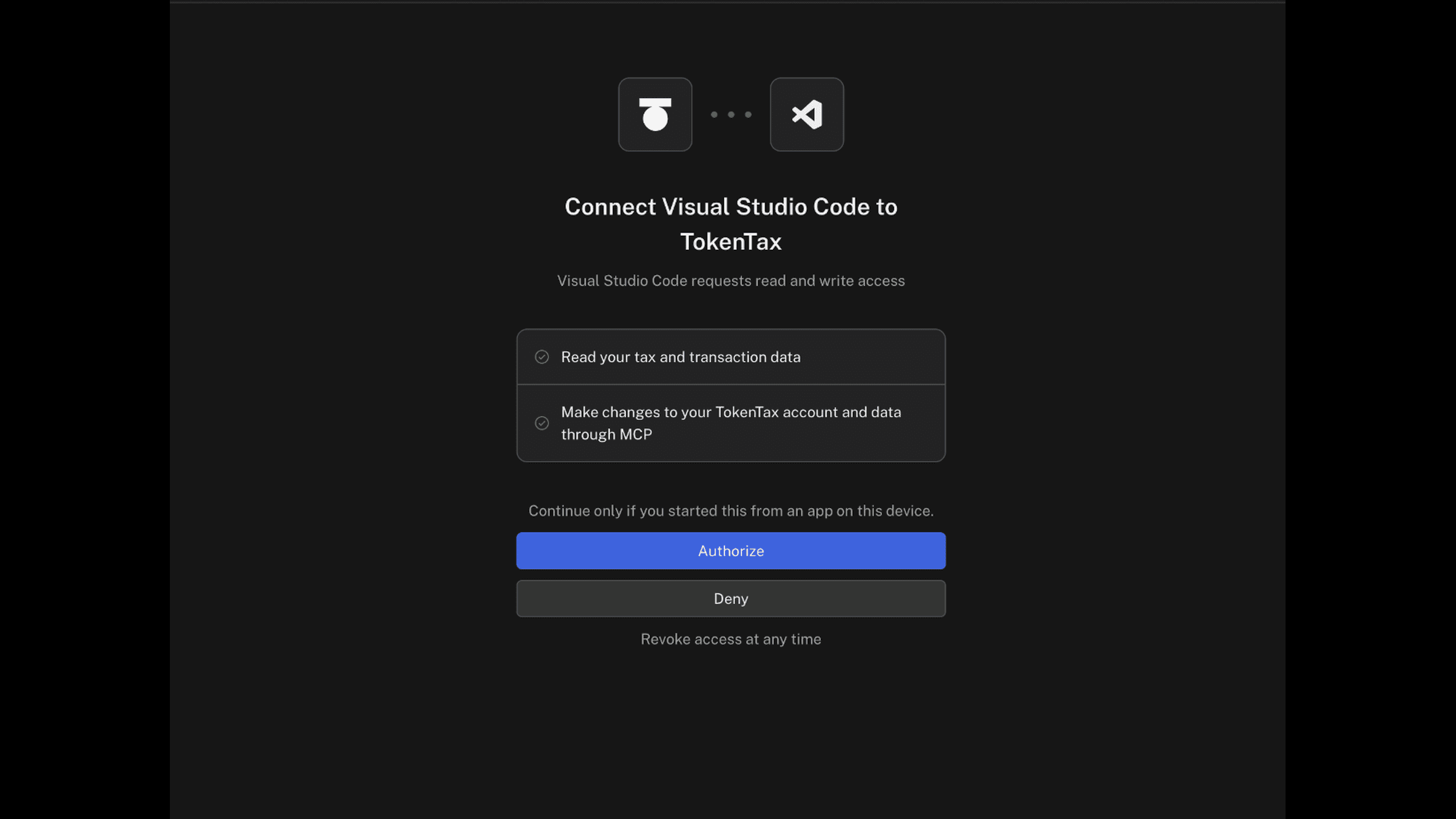
The browser opens a screen titled Connect Visual Studio Code to TokenTax.
It requests permission to:
Read your tax and transaction data.
Make changes to your TokenTax account and data through MCP.
Review those permissions and select Authorize.
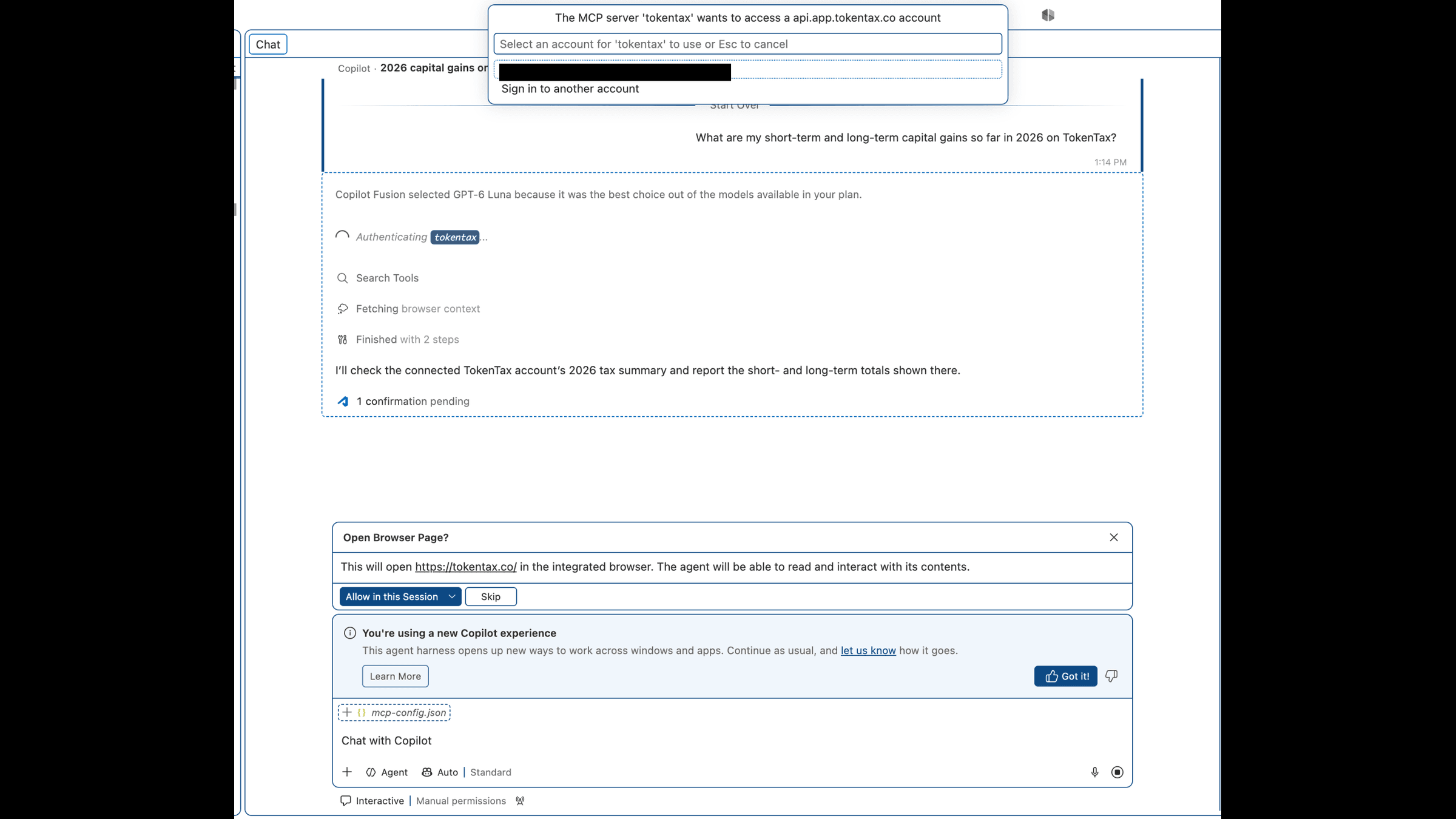
After authorization, VS Code returned to its MCP Servers screen. When we asked our first question, it also prompted us to select the TokenTax account associated with the connection.
Step 6: Ask Copilot a TokenTax question
Open the Chat panel and start a new session. Confirm the session uses the Copilot harness and select Agent.
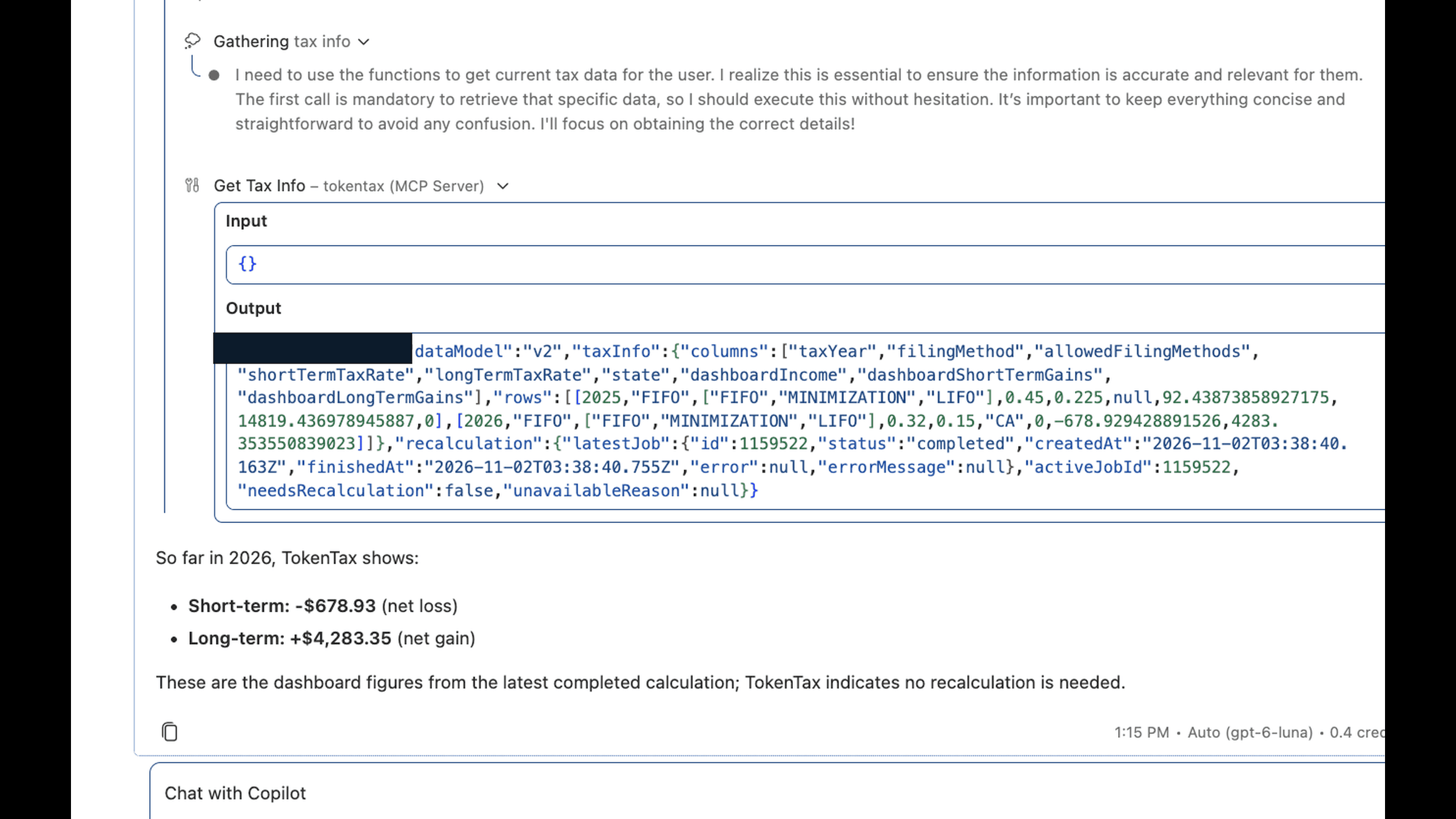
We asked: "What are my short-term and long-term capital gains so far in 2026 on TokenTax?"
Copilot called TokenTax's Get Tax Info MCP tool and returned:
Short-term: -$678.93
Long-term: $4,283.35
Combined: $3,604.42 net gain
Both short-term and long-term figures matched TokenTax's active calculation. Copilot also confirmed that the latest recalculation was complete and another wasn't needed.
Alternative: Connect TokenTax using .vscode/mcp.json
The TokenTax MCP landing page also provides a project-specific setup. We tested this separately after removing the Copilot Global connection and revoking its authorization.
Inside your project folder, create .vscode/mcp.json and paste:
{
"servers": {
"tokentax": {
"type": "http",
"url": "https://api.app.tokentax.co/mcp"
}
}
}
Save the file, run MCP: List Servers, select tokentax, and start the server.
VS Code supports this configuration, although the newer add-server flow labels the workspace destination deprecated in favor of the portable .mcp.json format.
During our test, the server initially displayed Authentication Required, but selecting Authenticate didn't open the sign-in page. Running Developer: Reload Window resolved the issue.
VS Code then requested permission to authenticate, let us select the TokenTax account, and opened the same OAuth authorization page as Copilot Global.
After authorization, we repeated the 2026 capital gains question. Copilot returned -$678.93 short-term and $4,283.35 long-term, matching the Copilot Global results exactly.
Both methods worked. Copilot Global is simpler for personal use because it doesn't require manually creating a configuration file.
Example prompts to try in VS Code
We tested the following prompts using GitHub Copilot Agent and the same synthetic TokenTax account. Each prompt was run in a new chat.
Prompt | What Copilot returned |
"What are my short-term and long-term capital gains so far in 2026 on TokenTax?" | -$678.93 short-term and $4,283.35 long-term, matching TokenTax. |
"Which of my trades last year had the biggest taxable gain on TokenTax?" | July 14, 2025 Coinbase sale of 0.4 BTC, with a $9,180.50 gain. |
"Using TokenTax, what's my cost basis for the ETH I sold in March?" | March 18, 2025 sale of 1 ETH, with $3,224.19 in cost basis and a $1,294.29 loss. |
"Which of my holdings on TokenTax have unrealized losses I could harvest?" | TokenTax required a Minimization recalculation. Copilot proposed changing the settings, which we declined. |
"Do my transactions on TokenTax match what's on my 1099-DA?" | Five sales matched, one had a proceeds discrepancy, and one was missing from TokenTax. |
"Using TokenTax, which of my 1099-DA entries are missing cost basis?" | All seven form entries had unreported basis, but only one matching TokenTax sale was missing calculated basis. |
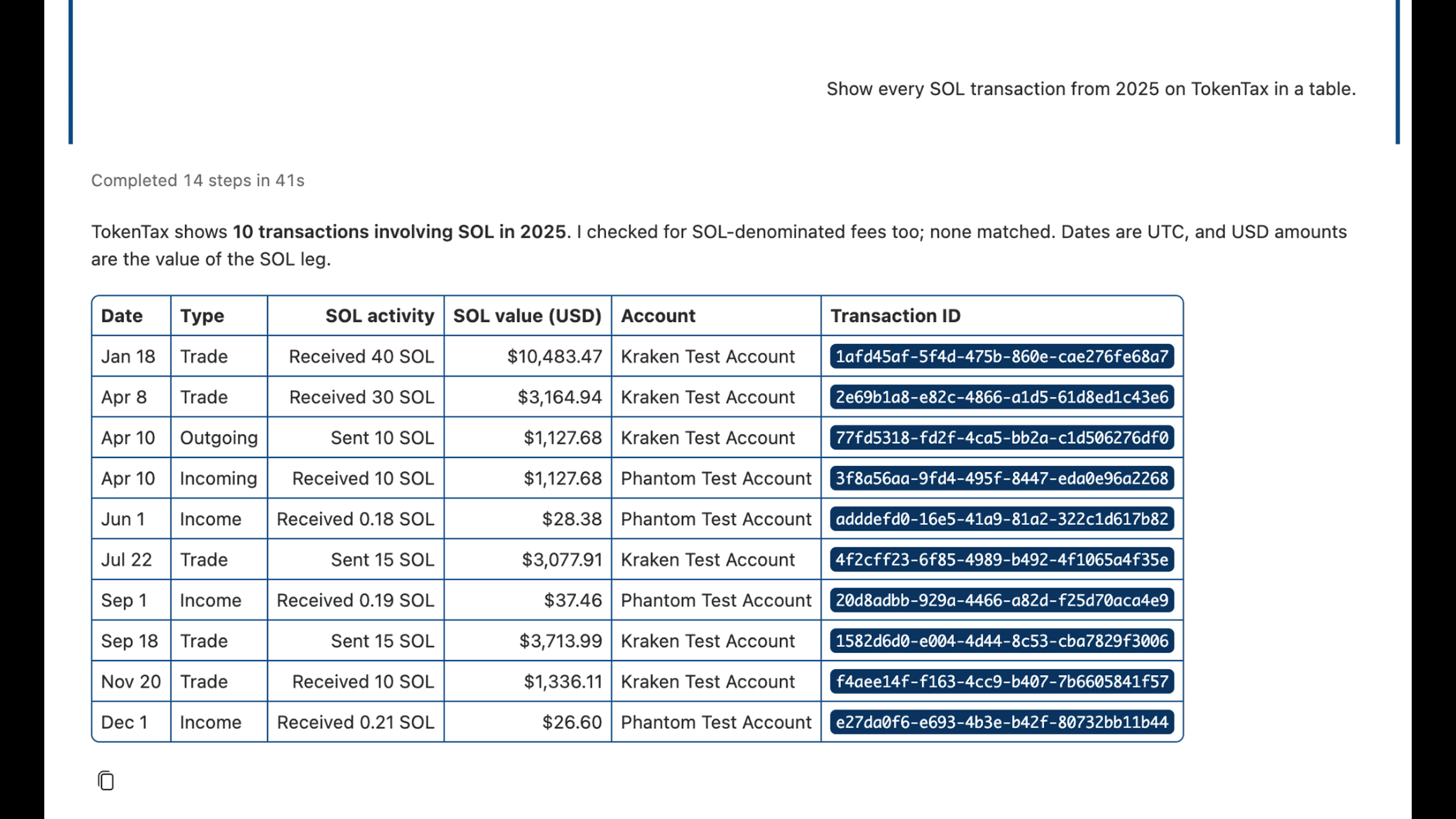
"Show every SOL transaction from 2025 on TokenTax in a table." | A table of all 10 SOL transactions, including 0.58 SOL of income valued at $92.44. |
"Chart my realized gains by month for 2025 on TokenTax." | A text-based monthly chart totaling $14,819.44. |
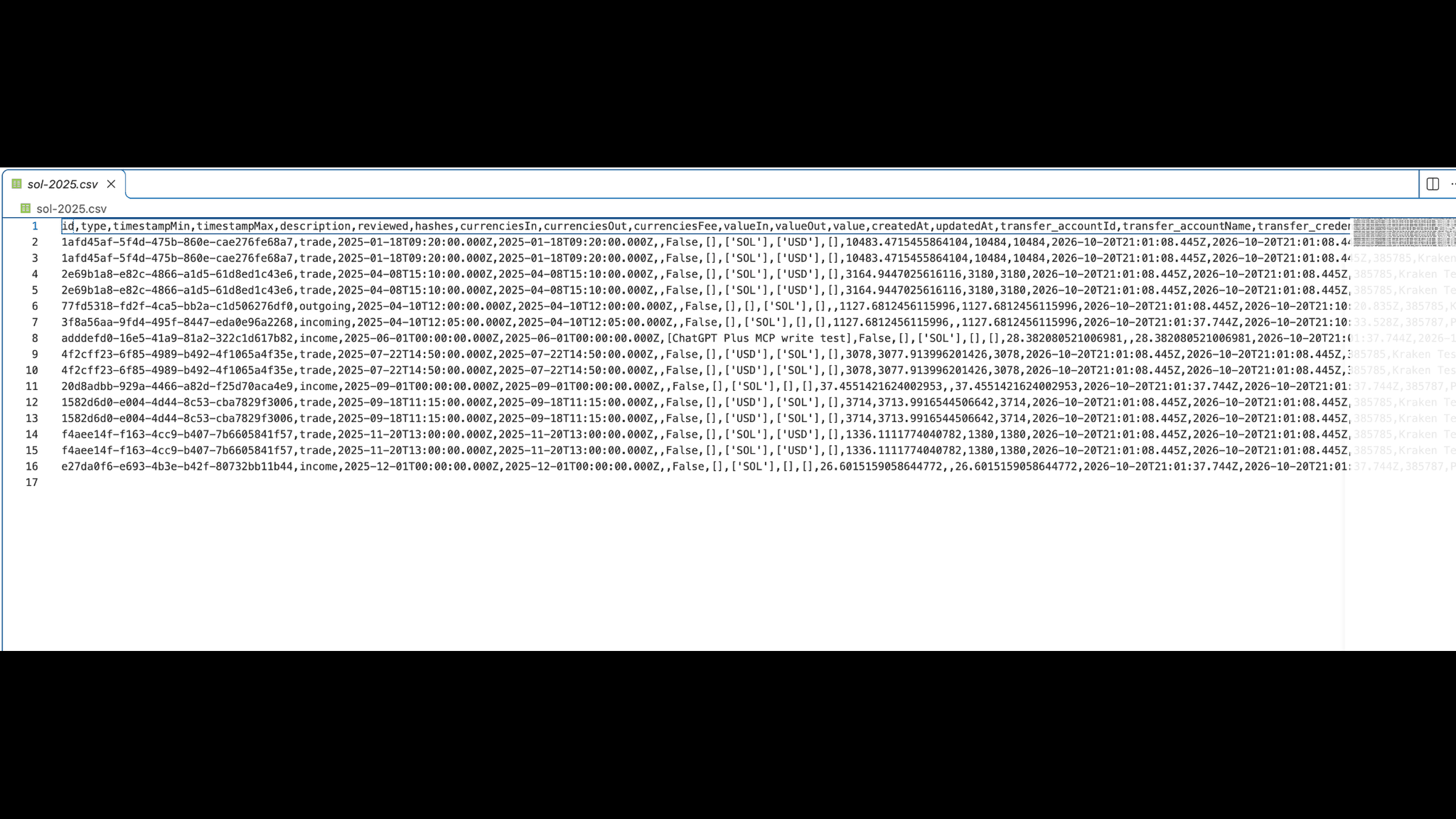
"Export every 2025 SOL transaction from TokenTax to sol-2025.csv in this folder." | A CSV containing 10 transactions represented by 15 transfer-leg rows. |
Comparing a 1099-DA with TokenTax
For the 1099-DA tests, we saved a synthetic PDF named sample-1099-da-coinbase-2025.pdf inside the VS Code project folder.
Copilot requested permission to run pdftotext to extract the form's contents. It then retrieved the corresponding transactions through TokenTax's MCP tools.
The form contained seven sales. TokenTax had corresponding transaction records for six. Five matched the form's reported proceeds, while the sixth had a proceeds discrepancy. The seventh sale had no corresponding transaction in TokenTax.
For a July 14 BTC sale, the 1099-DA reported $47,712 in gross proceeds. TokenTax's transaction showed $48,000 received, while its tax calculation used $47,939.66 in proceeds.
Copilot also identified an October 2 sale of 5 SOL that appeared on the sample form but had no corresponding TokenTax transaction.
The missing-basis test revealed another distinction. All seven form entries had basis unreported to the IRS, but TokenTax had calculated basis for five matching sales. The May 12 sale of 120 LINK showed $0 basis in TokenTax, and the October SOL sale had no matching transaction.
Our 1099-DA reconciliation guide explains how to investigate these discrepancies and missing cost basis.
Creating tables, charts, and CSV files
Copilot presented the 10 SOL transactions from 2025 in a Markdown table, with dates, transaction types, quantities, USD values, accounts, and transaction IDs.
The monthly gains prompt produced a text-based bar chart, not a graphical chart file. Its annual total of $14,819.44 matched TokenTax, although July's $8,327.12 figure differed by one cent from our comparison baseline.
For the CSV export, Copilot created sol-2025.csv in the project folder. It contained 15 rows representing 10 transactions, including non-SOL counterpart legs from trades.
We also investigated two April 10, 2025 SOL transactions: 10 SOL leaving Kraken at 12:00 UTC and 10 SOL arriving in Phantom five minutes later.
Both records had the same value of approximately $1,127.68 USD. Neither had a recorded transaction hash or fee, and TokenTax stored them as separate transactions rather than a linked movement.
Copilot correctly distinguished a possible transfer match from a confirmed one. No transactions were changed.
Is it safe to connect TokenTax to VS Code?
TokenTax uses OAuth, so you authorize access through TokenTax rather than providing your password to Copilot.
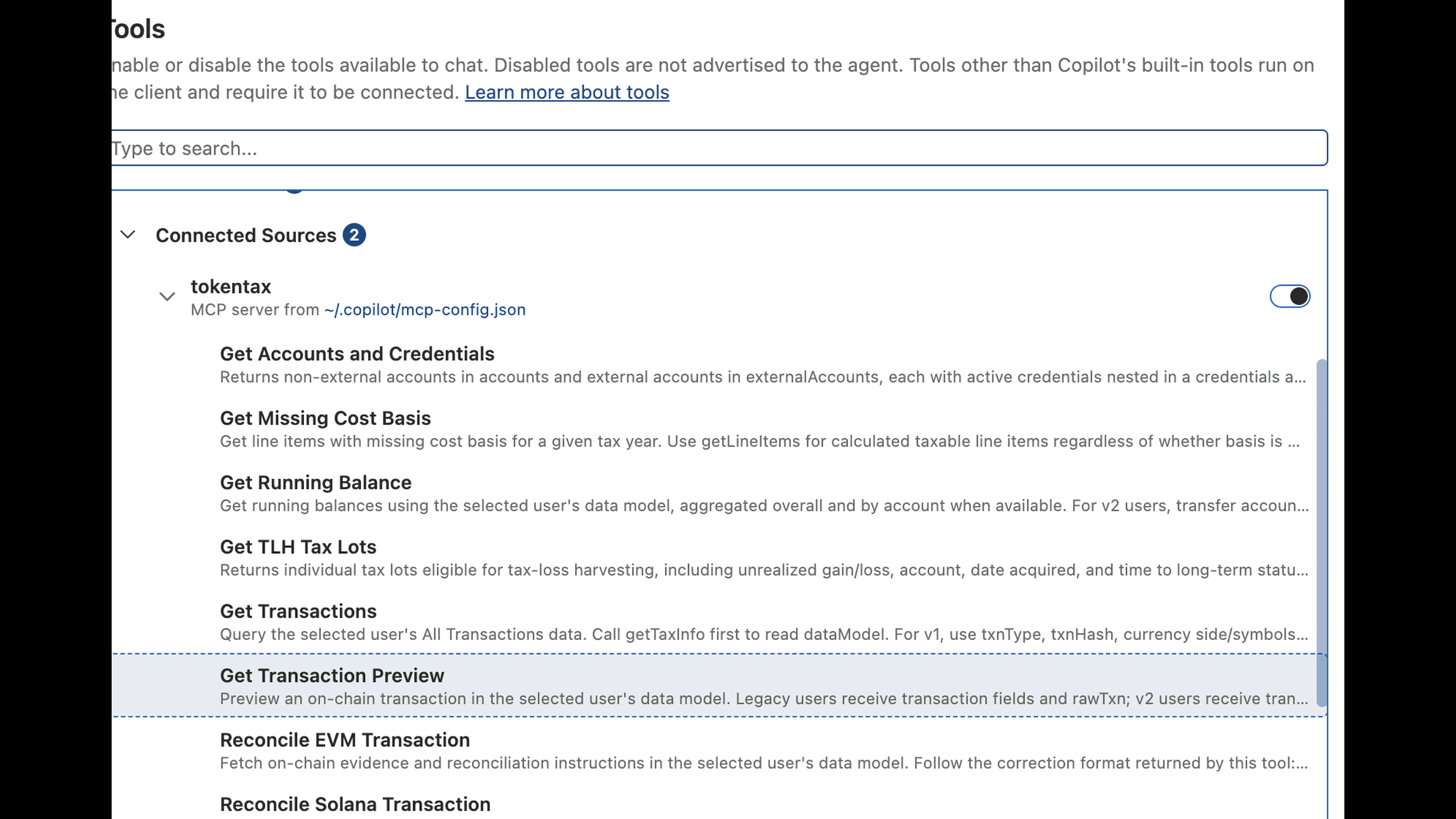
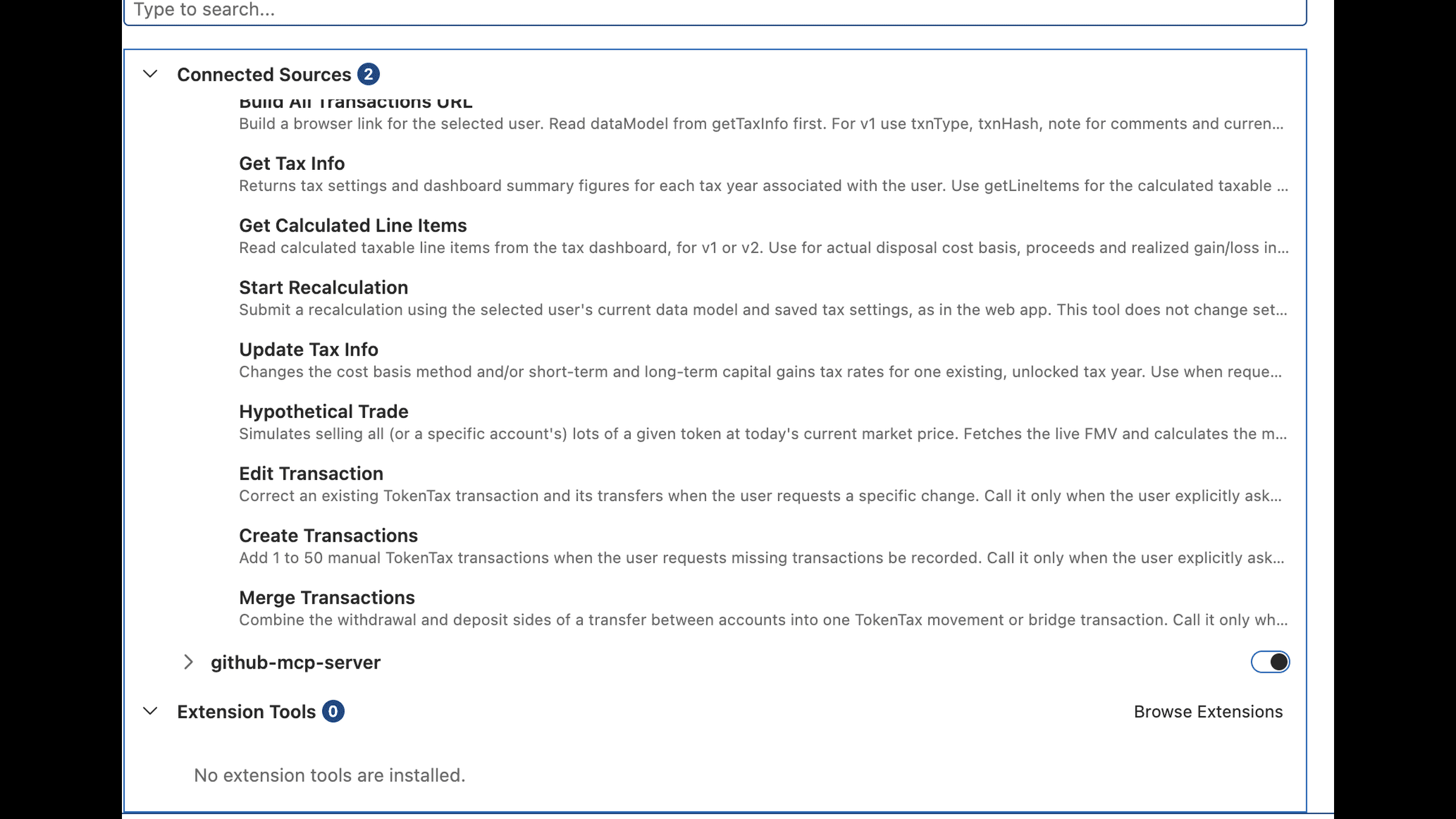
However, the authorization grants both read and write access. TokenTax exposed five tools capable of modifying transactions, settings, or calculations:
Create Transactions
Edit Transaction
Merge Transactions
Start Recalculation
Update Tax Info
VS Code provides permission controls for Copilot Agent sessions. We used Manual permissions, which applies the configured tool, URL, and terminal approval rules. Some read operations can run without additional prompts.
During our tax-loss harvesting test, TokenTax's Get TLH Tax Lots tool returned an error because the account was using FIFO rather than Minimization accounting.
Copilot then asked whether it should switch both 2025 and 2026 to Minimization and start a recalculation.
We declined the proposed change. A subsequent read-only check confirmed that both years remained on FIFO, the November 2 recalculation was still current, and no additional recalculation was needed.
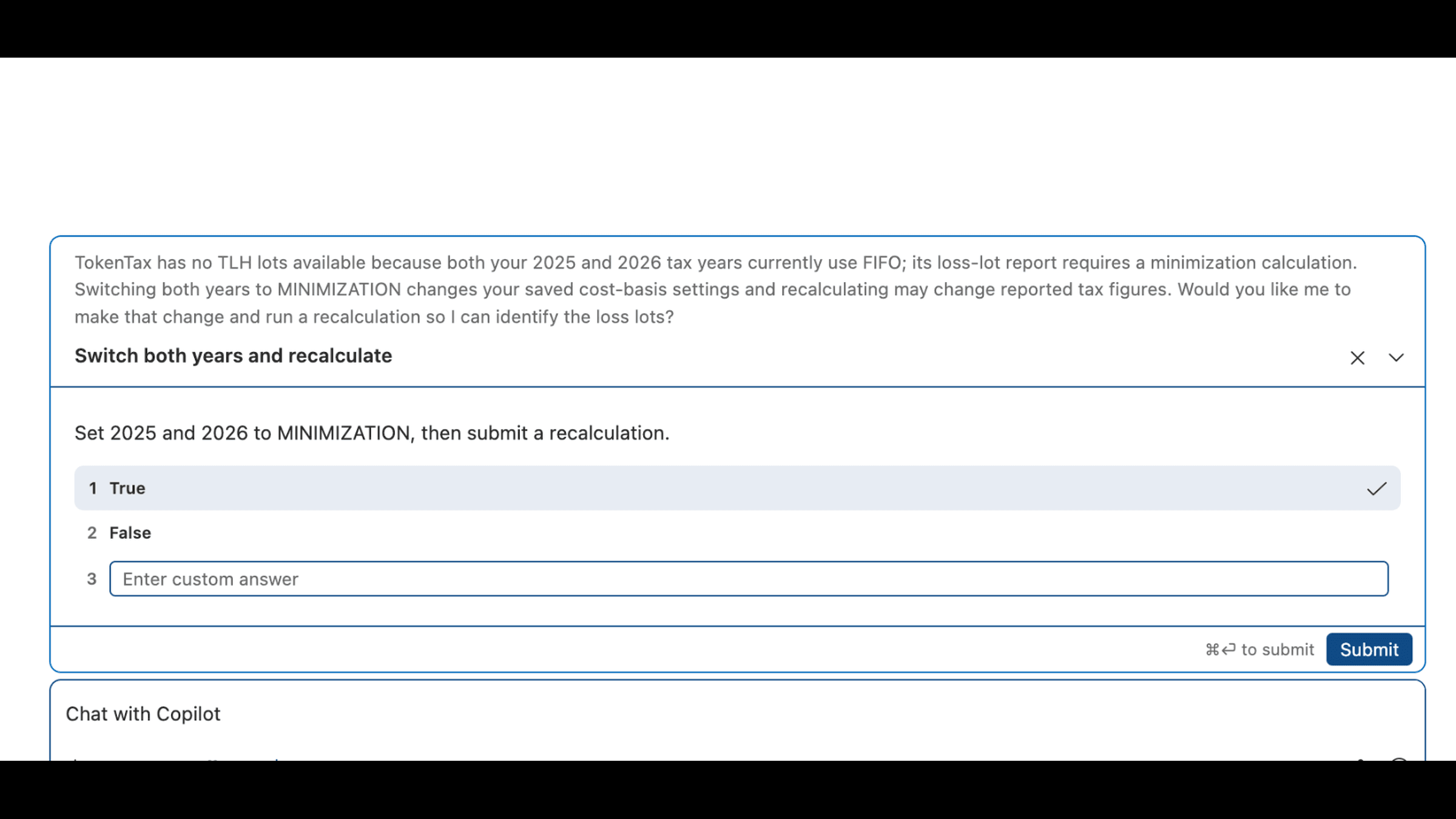
That was a confirmation question from Copilot, not a completed write-tool execution. We did not independently establish whether every TokenTax write operation requires tool-level approval in VS Code.
The Allow all and Autopilot options can execute tool calls without individual confirmation. Review VS Code's approval documentation before using those modes with financial data.
TokenTax's available tools appeared under Chat: Open Customizations > Tools. We could inspect the five write-capable tools, but did not verify individual tool disabling through that interface.
How to disconnect TokenTax from VS Code
To temporarily disable TokenTax, open Chat: Open Customizations > MCP Servers and turn off the server.
To remove the Copilot Global configuration, open ~/.copilot/mcp-config.json and delete its tokentax entry, preserving any other servers.
We tested this and confirmed that TokenTax disappeared from VS Code's connected sources.
For the project-specific setup, remove the tokentax entry from .vscode/mcp.json.
Separately, open TokenTax Profile Settings, find MCP Integrations, and select Remove beside Visual Studio Code.
We tested both configuration removal and OAuth revocation. Deleting the server configuration does not itself revoke the authorization stored in TokenTax.
Troubleshooting TokenTax in VS Code
MCP: Add Server doesn't show Copilot Global
Check that you're using an updated version of VS Code and are signed in to GitHub Copilot.
On Copilot Business or Enterprise, ask your administrator whether the MCP servers in Copilot policy is enabled.
You can also open Chat: Open Customizations > MCP Servers > Add Server.
VS Code doesn't open the TokenTax sign-in page
Confirm that the server type is HTTP and the URL is https://api.app.tokentax.co/mcp.
If authentication stalls, run Developer: Reload Window and retry. This resolved the issue during our project-level configuration test.
For additional troubleshooting, open MCP: List Servers, select tokentax, and choose Show Output.
Copilot reports that TokenTax requires a paid plan
TokenTax MCP access requires a paid subscription, with a current-year plan needed for full functionality.
Check your TokenTax subscription and retry after confirming access.
TokenTax's tools don't appear in Copilot
Confirm that the session uses the Copilot harness, TokenTax is enabled under MCP Servers, and authentication is complete.
Open Chat: Open Customizations > Tools to inspect the connected source.
If TokenTax has introduced new tools since you connected, run MCP: Reset Cached Tools.
Explore other TokenTax MCP integrations
TokenTax also connects to other AI assistants through the Model Context Protocol (MCP). Each application has its own setup process, features, and permission controls.
Explore our step-by-step guides:
VS Code TokenTax MCP server FAQs
Which GitHub Copilot plans can use TokenTax in VS Code?
Can I stop Copilot from changing my TokenTax data?
Will TokenTax carry over to VS Code on my other computers?
Does the same setup work in GitHub Copilot CLI?
Did Copilot's figures match TokenTax's reports?
Can I use TokenTax with the Claude or Codex harness in VS Code?
If you're already a customer, set up TokenTax in your AI app. If you're new to TokenTax, start with a paid plan and import your transactions.
Results depend on the data imported into your TokenTax account. AI responses are not tax advice; review figures and proposed changes in TokenTax before filing.
To stay up to date on the latest, follow TokenTax on Twitter @tokentax.
Related Content
