How to Use TokenTax with Claude Code

 Expert verified
TokenTax content follows strict guidelines for editorial accuracy and integrity. We do not accept money from third party sites, so we can give you the most unbiased and accurate information possible.

Why trust our crypto tax experts
Last verified: November 2026 | Tested with Claude Code v2.1.314 in the macOS terminal and at claude.ai/code using a TokenTax test account
Claude Code can do more than answer general questions about cryptocurrency taxes. Connect it to TokenTax, and it can examine your actual transactions, review tax calculations, investigate discrepancies, and help identify records that need attention.
The connection works through the TokenTax MCP server, which uses the Model Context Protocol (MCP). Once you’ve authorized it, Claude Code can retrieve your crypto tax data directly from your TokenTax account instead of relying on spreadsheets you paste into a conversation.
Below, we’ll cover how to use TokenTax with Claude Code in the terminal and on the web, eight examples using test-account data, and the permissions you should understand before allowing Claude Code to make changes.
What you can do with TokenTax in Claude Code
Connecting TokenTax gives Claude Code access to your imported transactions, gains, cost basis information, and other supported account data. It can also use that information to build reports and visualizations.
During our testing, Claude Code was able to:
Retrieve short-term and long-term capital gains and check whether the latest tax calculation was current.
Calculate the gains on individual cryptocurrency sales relative to their cost basis and identify the most profitable trades.
Compare an attached Form 1099-DA against transactions in TokenTax, including missing sales and mismatched proceeds.
Identify tax lots with unrealized losses and estimate potential tax savings.
Generate a monthly capital gains chart in a private browser-based artifact.
Change a tax year’s cost basis method and start a recalculation.
TokenTax’s tools also let Claude Code create, edit, and merge transactions, which we didn’t test. Those capabilities aren’t all read-only. TokenTax’s MCP tools can make changes to your account, and Claude Code doesn’t always require a separate permission prompt before executing them. We’ll explain the permission settings later in this guide.
What you need before you connect TokenTax to Claude Code
Before starting, make sure you have:
A paid TokenTax plan for the current tax year. This provides access to the integration and the tax data needed for its full functionality.
Transactions imported into TokenTax. Connect your exchanges and wallets or upload supported CSV files first. Claude Code can only work with records available through TokenTax.
A supported Claude subscription. Claude Code is available through Pro, Max, Team, and Enterprise plans, not the Free plan.
Claude Code installed for terminal use. The Claude desktop application doesn’t automatically install the command-line tool. If your terminal doesn’t recognize Claude, install Claude Code before continuing.
You can also use Claude Code in your browser at claude.ai/code. The web version uses connectors associated with your Claude account, so the setup differs from the terminal version. Anthropic’s Claude Code MCP docs explain how those connectors load.
How to use TokenTax with Claude Code: connect in the terminal or on the web
There are two ways to connect TokenTax, depending on where you use Claude Code.
In the terminal, you’ll add TokenTax as an MCP server with a command. In the browser, you’ll configure the TokenTax connector through Claude and then open Claude Code.
Both methods use the same TokenTax MCP server:
https://api.app.tokentax.co/mcp
Option 1: Connect TokenTax in the terminal
Step 1: Add the TokenTax MCP server
Open your terminal and enter:
bash
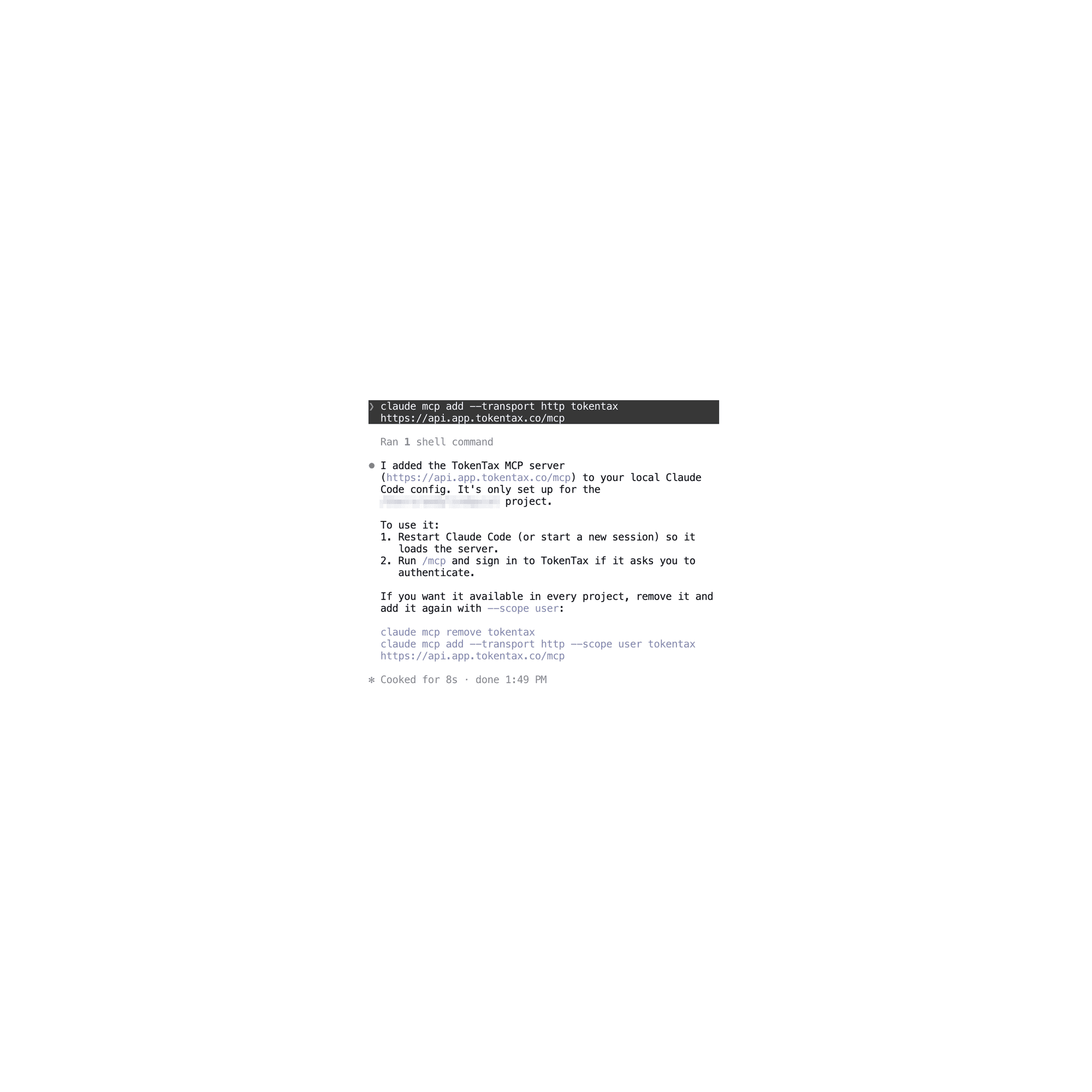
claude mcp add --transport http tokentax https://api.app.tokentax.co/mcp
This registers TokenTax as a remote MCP server using HTTP transport.
By default, Claude Code adds the server with local scope. That means the connection is available when you run Claude Code from the directory where you added it, rather than automatically following you across every project.
Step 2: Authenticate the connection
Start Claude Code by running:
bash
claude
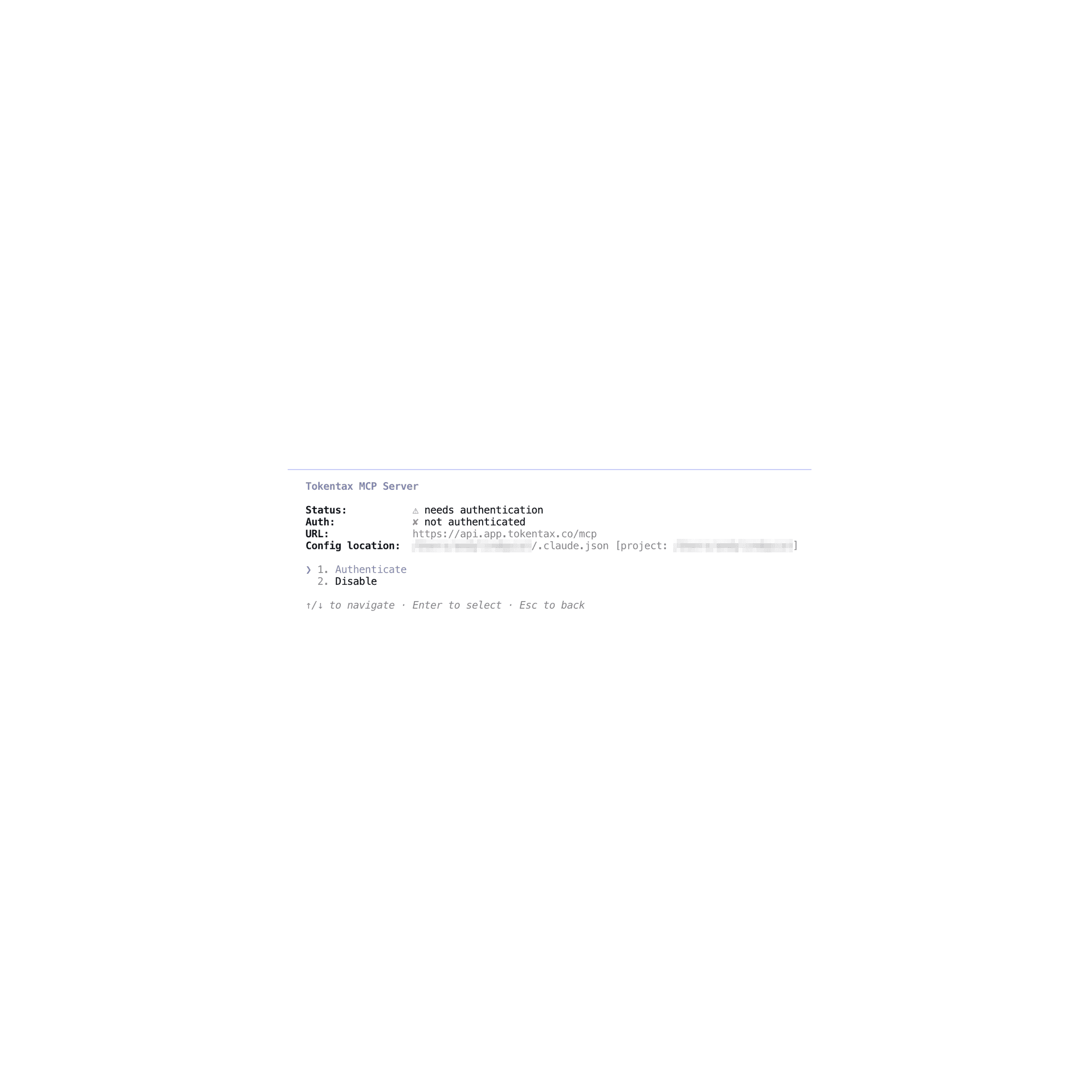
Once you’re inside Claude Code, type /mcp to open the MCP server menu.
Under Local MCPs, find tokentax. It should initially show that authentication is needed. Select the server and choose Authenticate.
Step 3: Authorize Claude Code in TokenTax
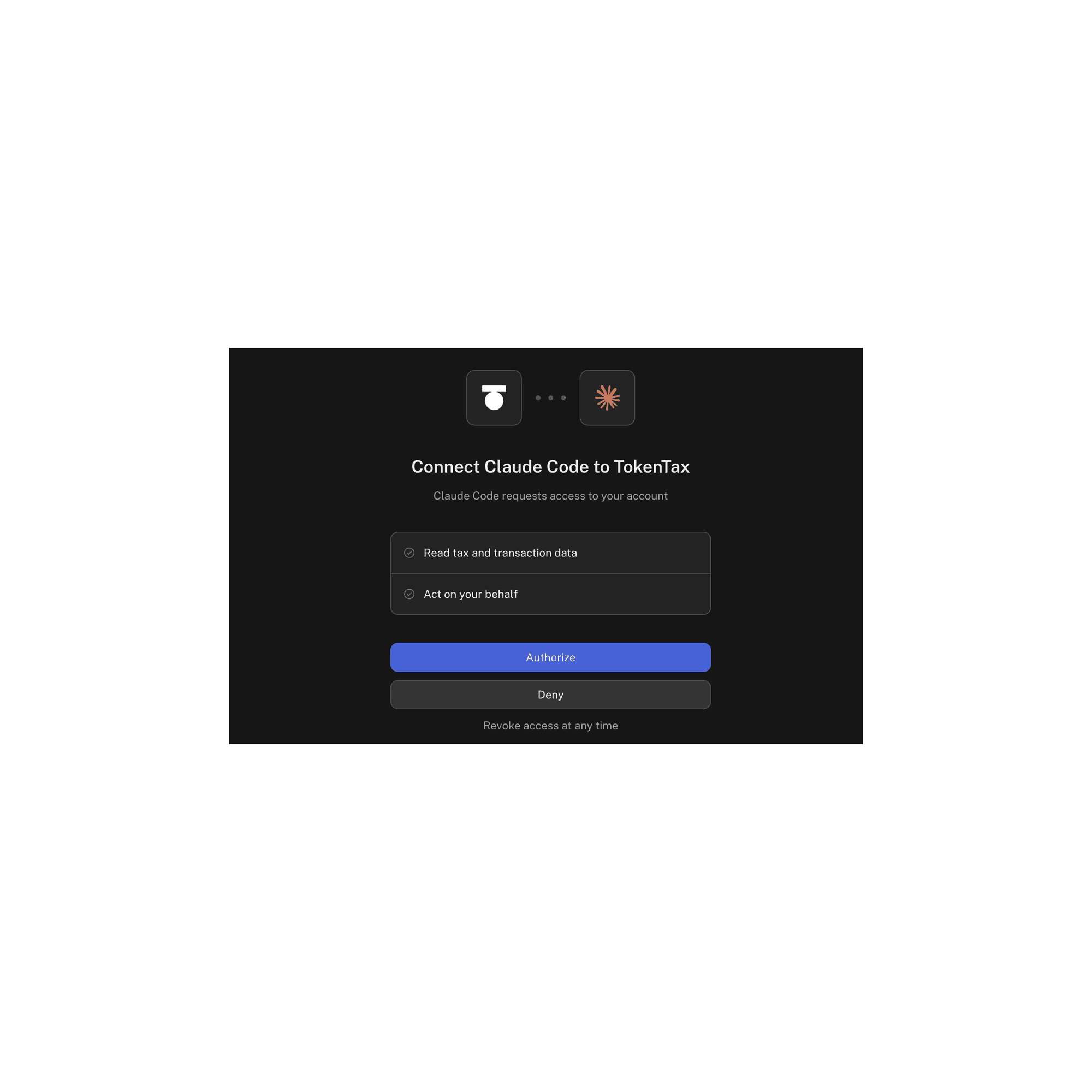
Claude Code opens your browser to TokenTax’s authorization page, titled Connect Claude Code to TokenTax.
The page requests two permissions:
Read tax and transaction data
Act on your behalf
The first permits Claude Code to retrieve account information. The second covers tools that can make changes, including transaction edits and tax-setting updates.
Review the permissions, sign in if necessary, and select Authorize.
Step 4: Confirm the connection
Return to your terminal. Claude Code should report:
Authentication successful. Connected to tokentax.
You can now ask Claude Code questions about your imported TokenTax data.

Option 2: Connect TokenTax to Claude Code on the web
The web version works differently. You don’t need to install the command-line tool or run the MCP add command.
Instead, add TokenTax as a connector in your Claude account using the steps in our How to Use TokenTax with Claude guide. Then open claude.ai/code and start a new session.
Claude Code on the web can use the connectors associated with your Claude account.
Web sessions run in temporary cloud environments, and in our test, configuring TokenTax there with the terminal command caused connection failures. Those failures continued in the affected session even after we added the connector through Claude.
If you’re using Claude Code on the web, configure TokenTax through Claude first and start a fresh web session. Don’t run the terminal setup command in the web environment.
Example prompts to try in Claude Code
We tested the following prompts in November 2026, using Claude Code in the terminal with a Claude Pro subscription.
Our TokenTax test account contained cryptocurrency transactions imported from CSV files generated by Coinbase, Kraken, and Phantom Wallet. We used fresh Claude Code sessions for each test.
For the two Form 1099-DA examples, we also attached a sample PDF directly to Claude Code.
1. Check your capital gains for the year
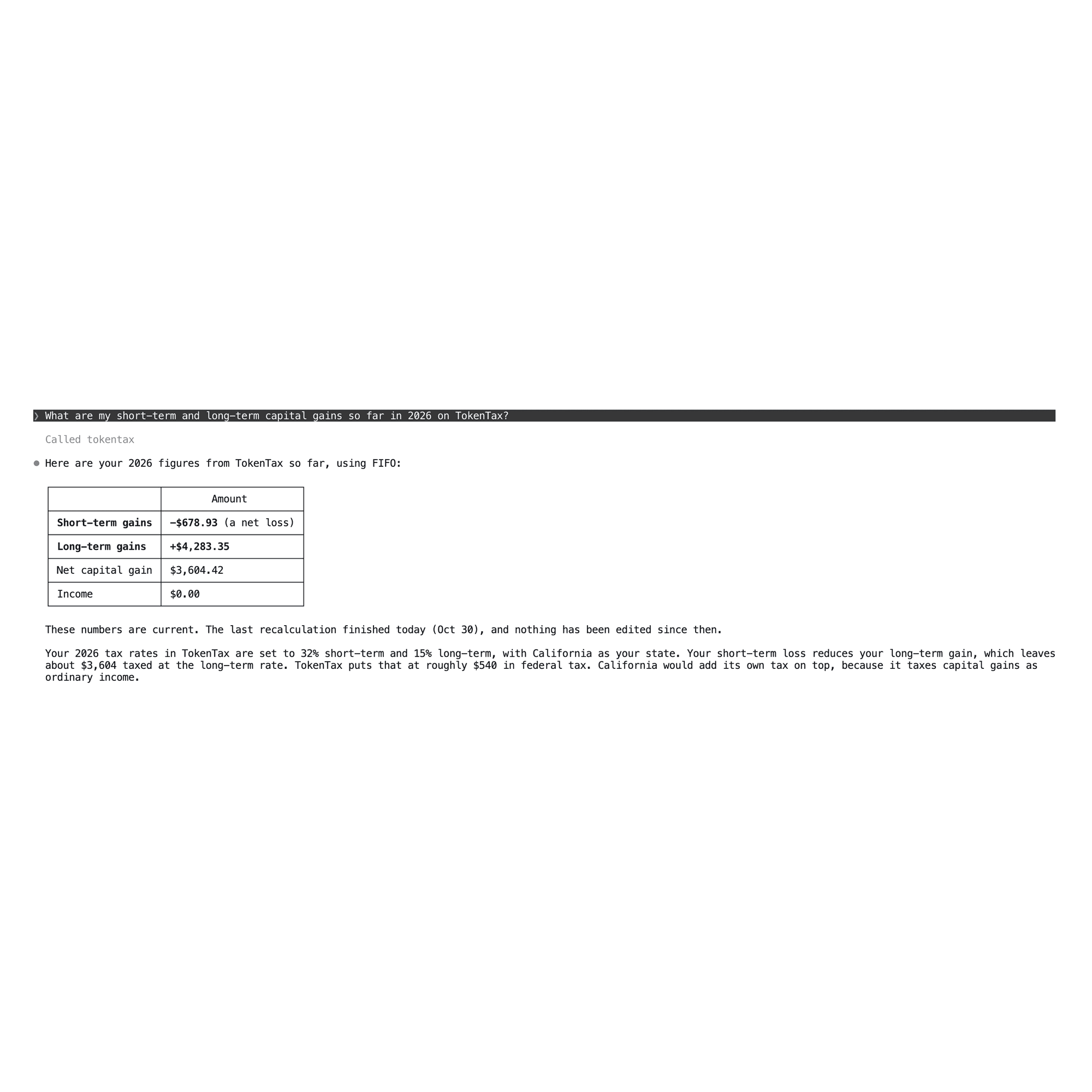
Prompt: What are my short-term and long-term capital gains so far in 2026 on TokenTax?
Claude Code retrieved the account’s calculated short-term gains, long-term gains, net gains, and income.
It returned those figures in a table, with amounts matching the TokenTax report to the cent. It also checked the most recent recalculation and confirmed the reported totals were current. Claude Code’s federal tax estimate matched the estimated tax liability displayed in TokenTax.
This is a useful starting point when you want a quick breakdown of your tax position without navigating through multiple sections of the application.
2. Find your most profitable cryptocurrency trade
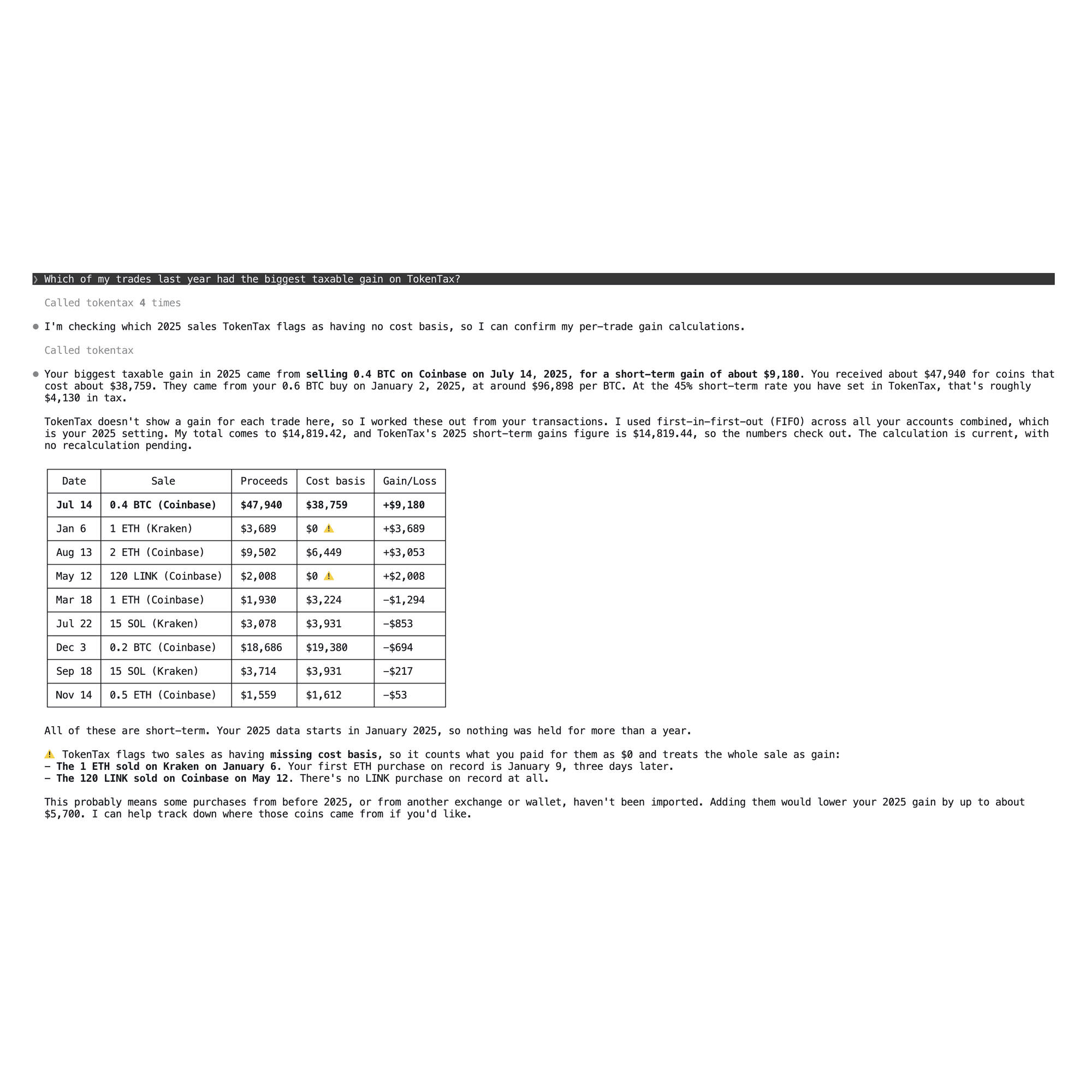
Prompt: Which of my trades last year had the biggest taxable gain on TokenTax?
The largest gain came from a Coinbase sale of 0.4 BTC on July 14, 2025. Claude Code calculated a short-term gain of approximately $9,180.
Getting that result required more than sorting a list of transactions. TokenTax’s MCP response didn’t provide a calculated gain for each individual sale, so Claude Code examined the transaction history and processed all nine sales recorded for 2025.
It then verified that its calculations reconciled with TokenTax’s total short-term capital gains.
Along the way, Claude Code flagged two sales with missing cost basis information. A ranked list of profitable trades isn’t particularly useful if some of the underlying acquisition information is incomplete.
3. Trace the cost basis of a cryptocurrency sale
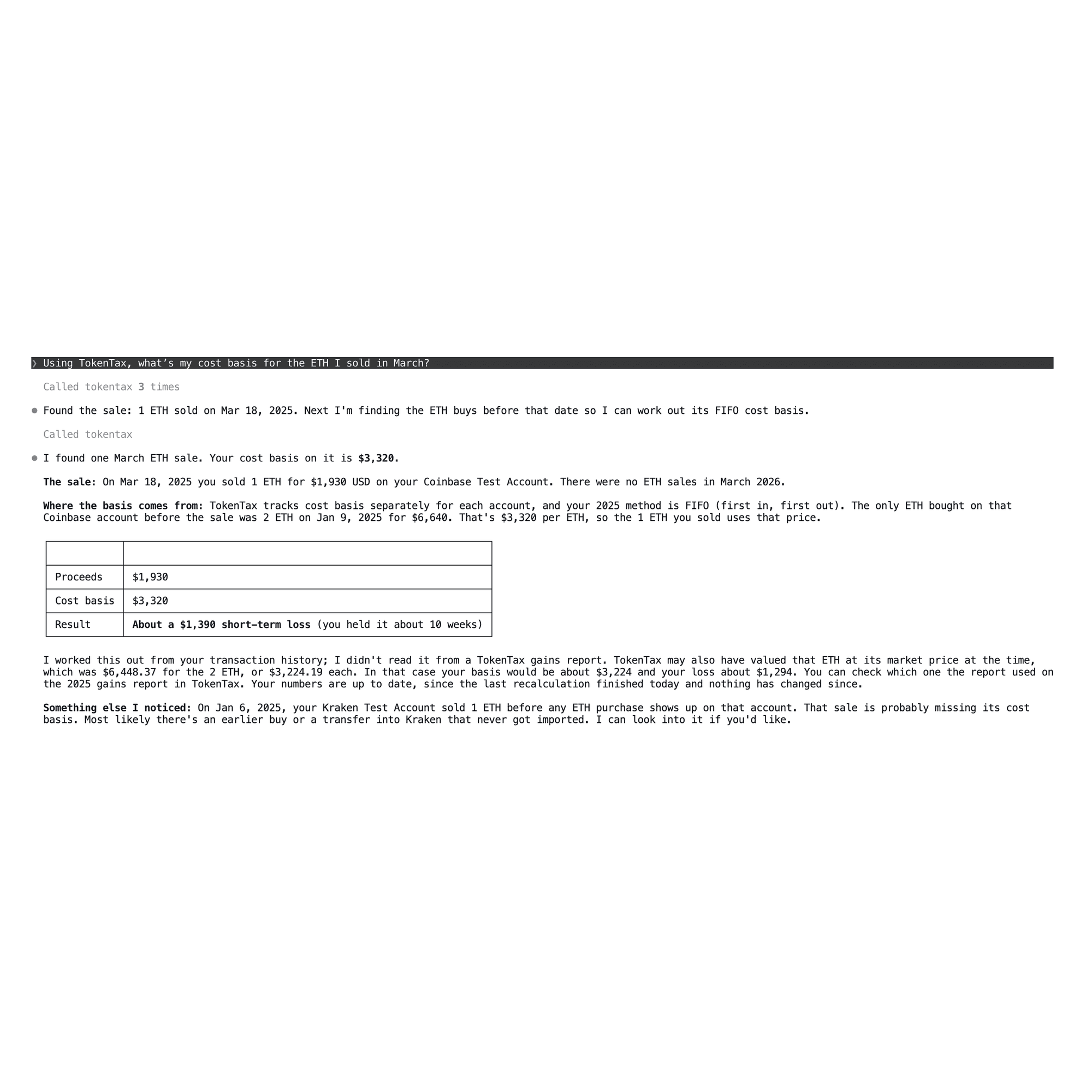
Prompt: Using TokenTax, what’s my cost basis for the ETH I sold in March?
Claude Code identified a sale of 1 ETH on March 18, 2025, and traced it to a January 9 purchase of 2 ETH. The original purchase record showed $6,640 paid for the 2 ETH, equivalent to $3,320 per ETH.
However, Claude Code also identified a difference in TokenTax’s valuation. TokenTax had assigned a market-price basis of approximately $3,224 per ETH, and that lower value was used in its capital gains report. The result showed a gap between the amount recorded as paid and the basis used in TokenTax’s calculation.
Claude Code can help identify differences like this, but a transaction-level calculation doesn’t automatically replace the figures used in your TokenTax tax report. Review the underlying records before relying on either number.
4. Find holdings with unrealized losses
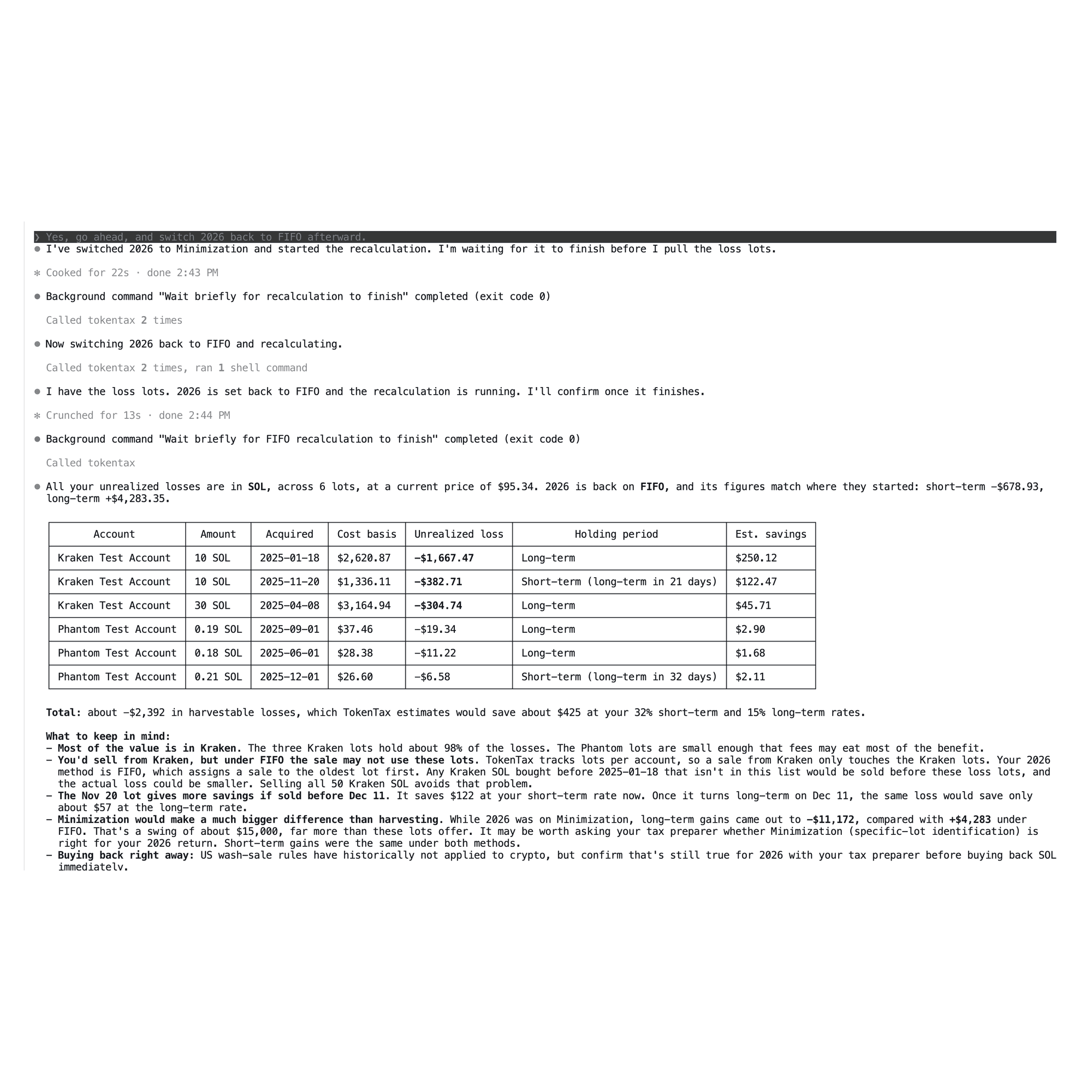
Prompt: Which of my holdings on TokenTax have unrealized losses I could harvest?
TokenTax’s tax-loss harvesting tool requires the Minimization cost basis method. Our 2026 tax year was initially configured to use FIFO, so Claude Code couldn’t retrieve harvesting lots immediately.
It first asked whether we wanted to change the method. After we agreed, Claude Code switched the year to Minimization and ran a recalculation.
The resulting analysis identified six SOL tax lots with approximately $2,392 in combined unrealized losses. Claude Code also displayed an estimated tax saving for each lot.
Afterward, it restored the 2026 cost basis method to FIFO.
The exercise demonstrated both the harvesting analysis and Claude Code’s ability to change TokenTax settings. It also showed a permission issue: although Claude Code asked us in the previous conversation before making the change, it proceeded with the setting change and recalculation without a separate tool-approval prompt.
5. Compare Form 1099-DA with your TokenTax transactions
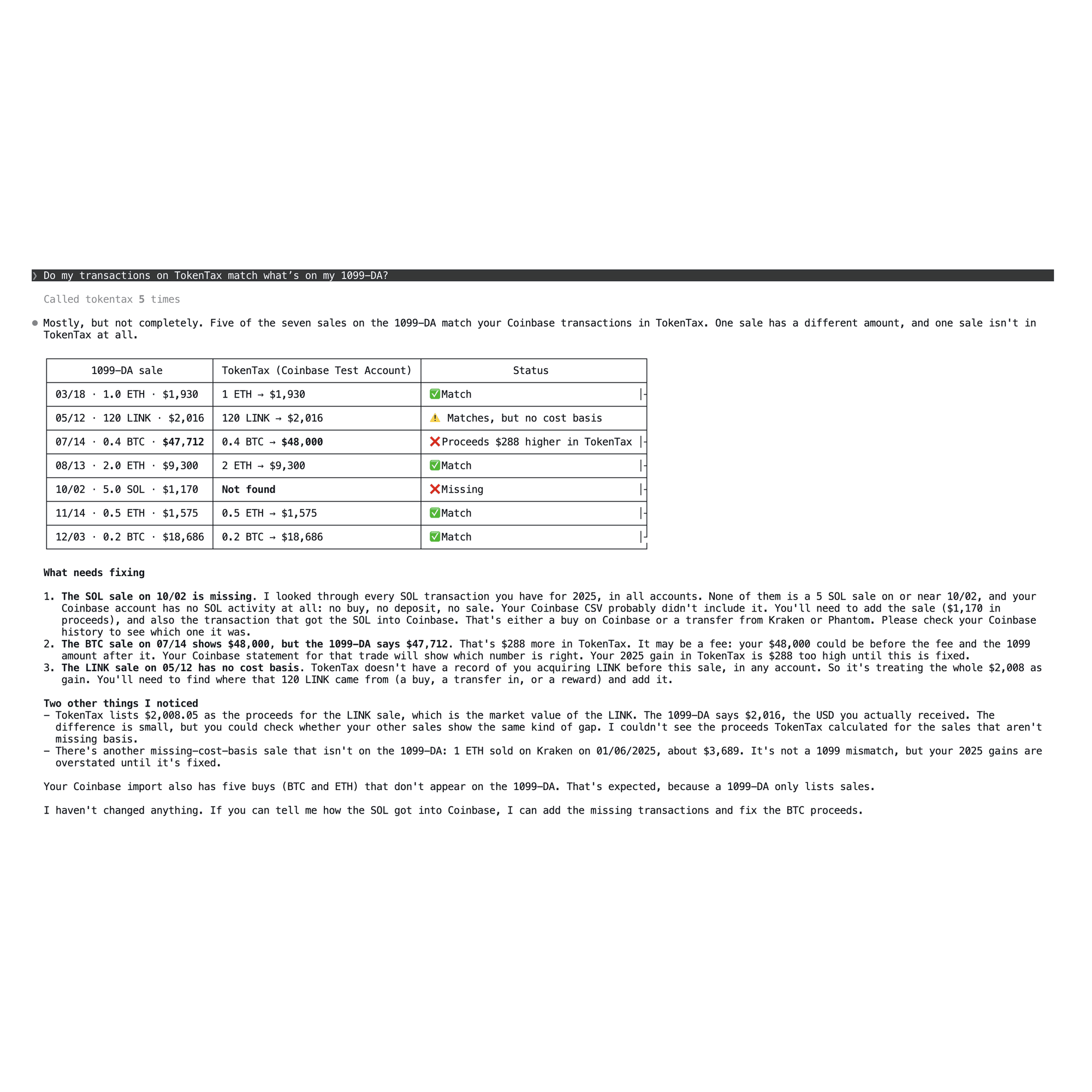
Prompt: Do my transactions on TokenTax match what’s on my 1099-DA?
For this test, we dragged a sample Form 1099-DA PDF into the Claude Code terminal along with the prompt.
Claude Code compared the form’s seven reported sales against the Coinbase transactions recorded in TokenTax.
It found three different outcomes:
Five sales matched the available transaction records.
One sale showed a discrepancy in proceeds.
One sale appearing on the 1099-DA was missing from TokenTax entirely.
Claude Code explained which transactions required attention and what information would need to be added or corrected.
It made no changes to transactions during the test.
There was one limitation: Claude Code could compare the amounts recorded on individual transactions, but it couldn’t directly retrieve the proceeds figures calculated by TokenTax for each sale. The comparison therefore used the available transaction amounts.
For more on resolving discrepancies, see our 1099-DA reconciliation guide.
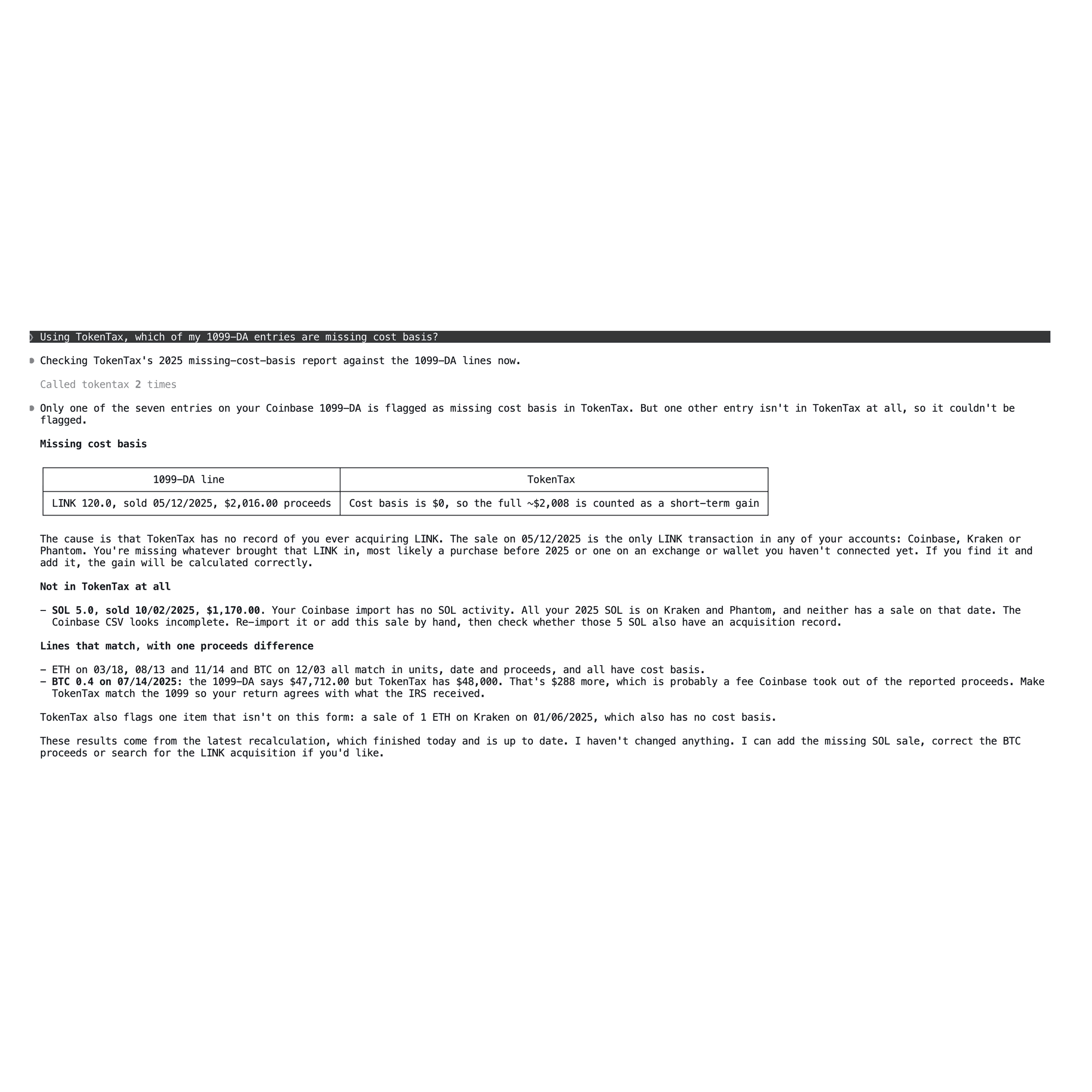
6. Identify 1099-DA transactions missing cost basis
Prompt: Using TokenTax, which of my 1099-DA entries are missing cost basis?
We attached the same sample Form 1099-DA for this test.
Claude Code identified a sale of 120 LINK for which TokenTax had no corresponding acquisition record. Without that acquisition, the transaction lacked the basis information needed to calculate its gain accurately. It also pointed out two related issues.
First, a sale shown on the 1099-DA but missing entirely from TokenTax couldn’t be flagged by a search of TokenTax transactions alone.
Second, Claude Code found a Kraken sale with missing basis information that wasn’t included on the attached 1099-DA.
Missing cost basis and missing transactions are separate problems, and checking only one set of records won’t necessarily reveal both.
7. Review every SOL transaction from 2025
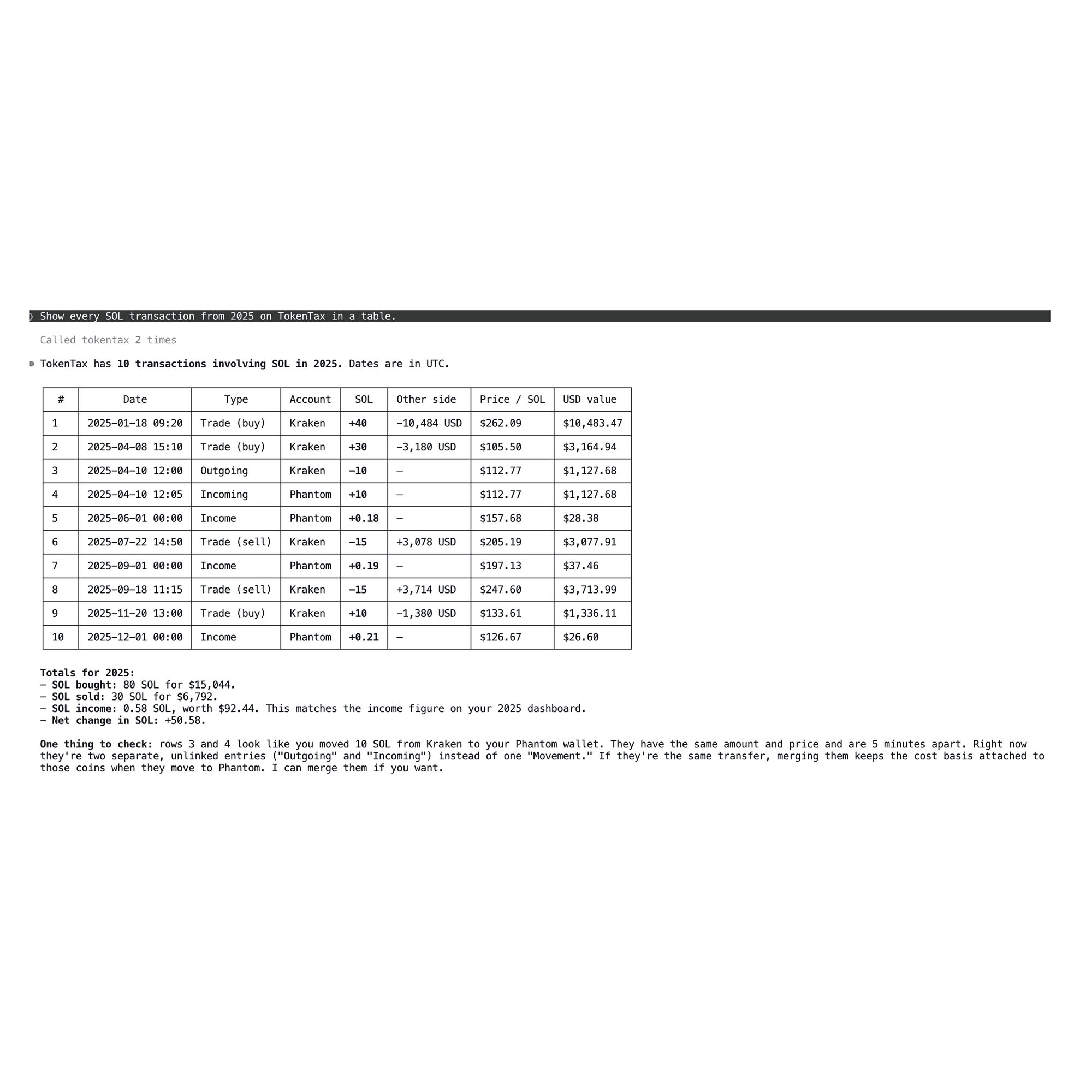
Prompt: Show every SOL transaction from 2025 on TokenTax in a table.
Claude Code retrieved all 10 SOL transactions recorded in the test account for 2025.
Its table included transaction dates, classifications, accounts, amounts, and USD values. It also summarized the total SOL purchased, sold, and received as income.
The calculated income total matched the figure reported by TokenTax.
The table also showed an unlinked transfer. A 10 SOL withdrawal from Kraken and a corresponding deposit into Phantom were recorded as separate transactions rather than one linked internal movement.
Claude Code identified the possible relationship and offered to merge the records.
The matching amounts and timing supported further investigation, but they didn’t independently prove the transactions belonged to the same transfer. We didn’t execute a merge during this test.
8. Build a monthly capital gains chart
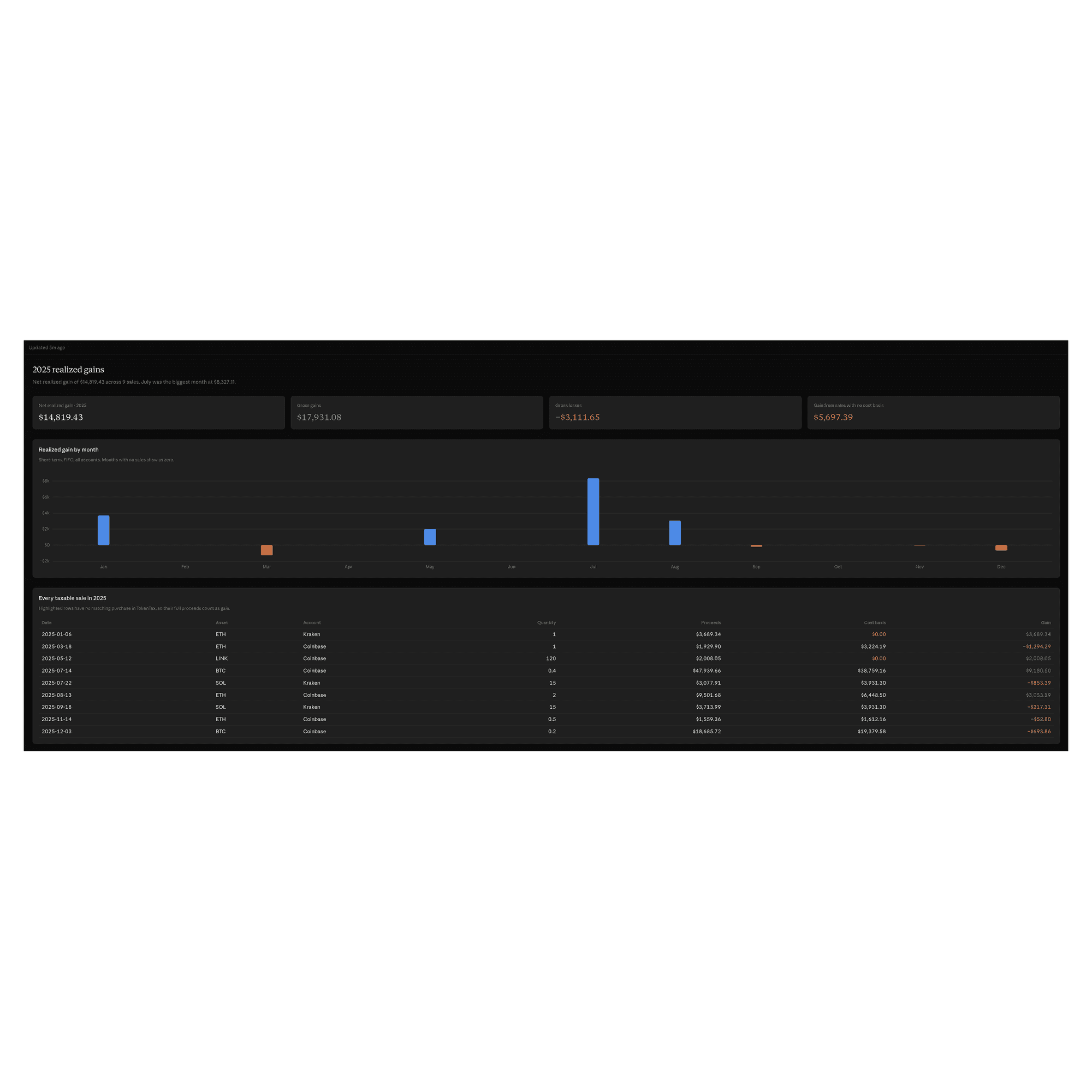
Prompt: Chart my realized gains by month for 2025 on TokenTax.
Claude Code didn’t simply return a chart inside the terminal. Instead, it created a private Claude artifact that we opened in the browser.
The page displayed monthly realized gains alongside several additional measures, including net gains, gross gains and losses, and gains associated with sales missing basis information.
It also included the individual sales making up the annual figures. The totals matched TokenTax’s 2025 report.
Claude Code turned the transaction data into a browser-based report, so we didn’t have to assemble the figures in a spreadsheet.
The artifact remained private to our Claude account unless we chose to share it.
Is it safe to connect TokenTax to Claude Code?
TokenTax uses OAuth authentication. You approve the connection through TokenTax’s own authorization page rather than entering your TokenTax password or API credentials into Claude Code.
You can revoke the connection through your TokenTax profile settings.
However, connecting the accounts gives Claude Code access to financial information and potentially allows it to modify records, so check Claude Code’s permission settings before you start.
What can Claude Code change?
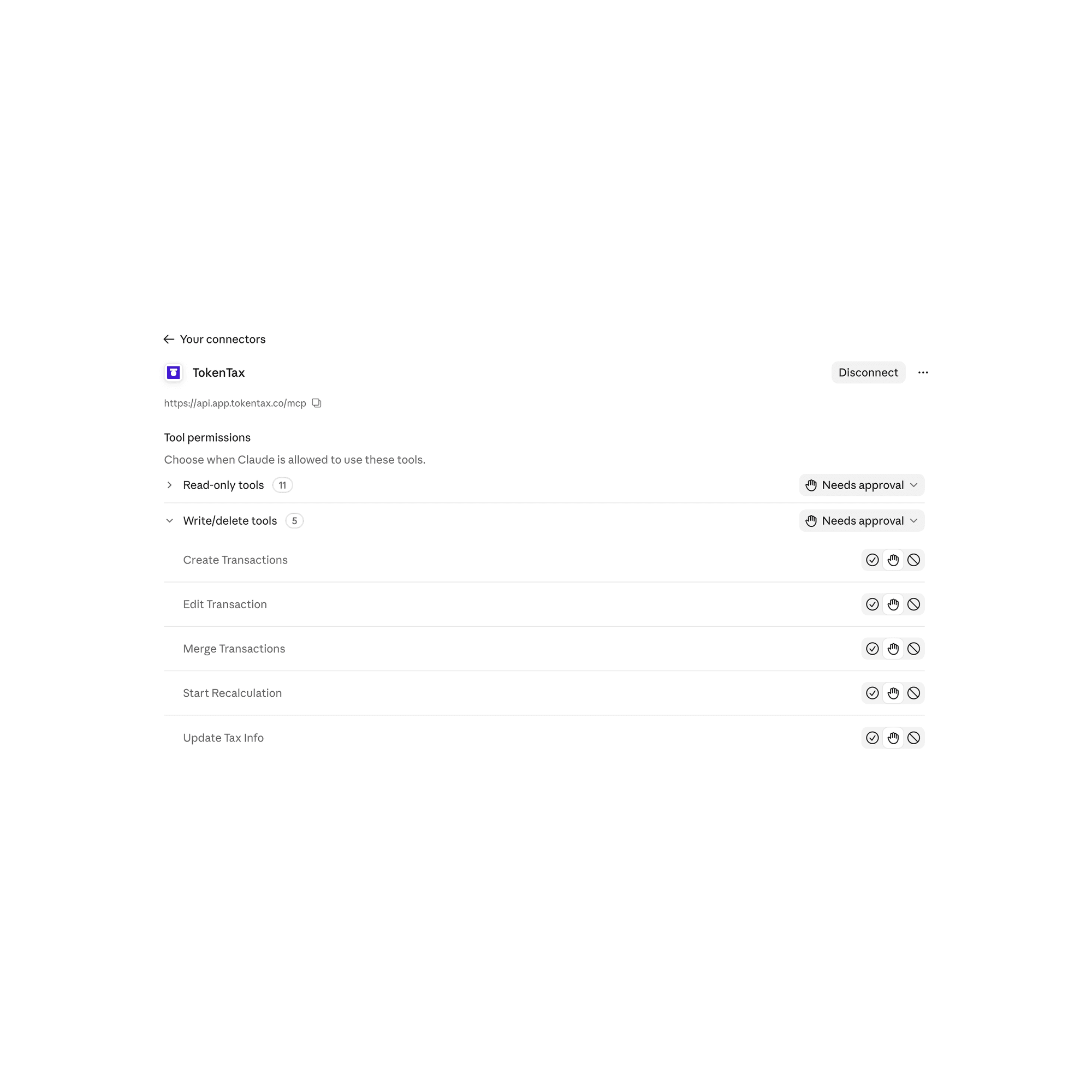
The TokenTax MCP server exposes 16 tools. Eleven are read-only, while five can make changes:
Create Transactions: Adds transactions to your TokenTax account.
Edit Transaction: Changes supported fields on existing transactions.
Merge Transactions: Combines eligible transaction records.
Update Tax Info: Changes supported tax settings, including cost basis methods and tax rates.
Start Recalculation: Starts a new tax calculation using the account’s saved settings.
None of these five tools directly deletes a transaction, and they cannot modify a locked tax year.
Locking a tax year preserves its finalized figures so later transaction changes don’t unintentionally alter the records used for previously prepared tax documents.
TokenTax doesn’t currently require a second, in-app confirmation before applying MCP changes. Once an authorized tool runs, the change takes effect.
Change Claude Code’s permission mode before making edits
Claude Code’s default Auto mode decides when tool calls need approval.
In our testing, Claude Code changed the 2026 cost basis method and initiated a recalculation without displaying a separate permission prompt. It had asked us in the conversation first, but the tool execution itself didn’t require another confirmation.
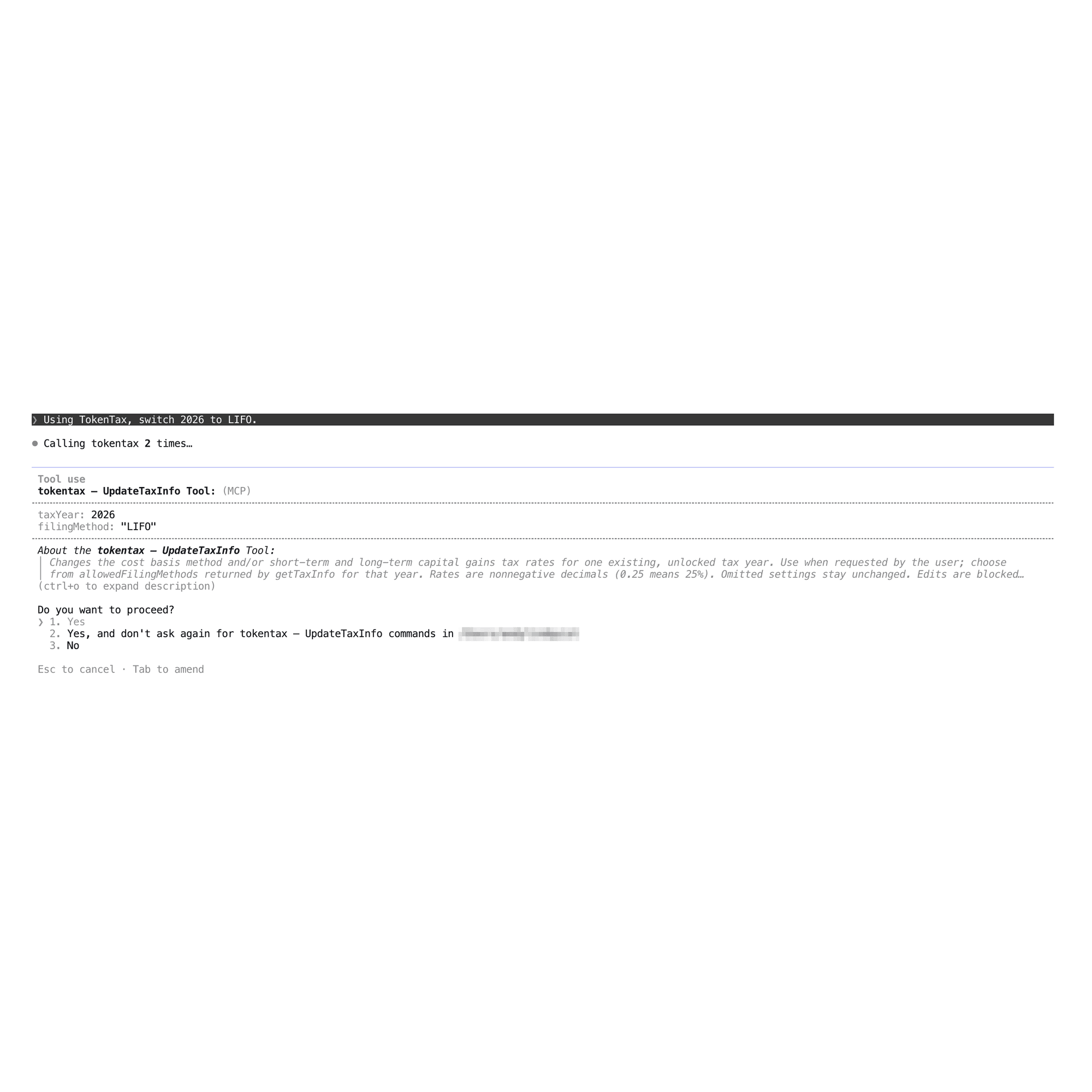
For greater control, switch Claude Code to Manual mode.
Press Shift+Tab until the interface indicates that Manual mode is enabled. Claude Code will then present tool-use approval requests rather than making those decisions automatically.
The approval options include Yes, Yes, and don’t ask again for that tool in the current folder, and No.
Be careful with the second option, since it allows subsequent uses of that tool without repeating the same approval request in that context.
We recommend using Manual mode when working with tax records, especially if you intend to edit transactions, change accounting methods, or initiate recalculations.
Permissions configured in the regular Claude application don’t automatically govern Claude Code.
In our test, Claude was configured to require approval, but Claude Code on the web still used TokenTax tools without asking. Check the settings in the environment you’re actually using.
Troubleshooting TokenTax in Claude Code
“command not found: claude”
This means the Claude Code command-line tool isn’t installed or your terminal can’t find it.
Install Claude Code using Anthropic’s installation instructions. If the installer reports that ~/.local/bin isn’t included in your PATH, follow the command it provides, open a new terminal window, and try again.
The Claude desktop application alone doesn’t install the terminal command.
“no such file or directory: /mcp”
This usually means you entered /mcp at your computer’s regular terminal prompt instead of inside Claude Code.
Run Claude first. Once Claude Code is open, enter /mcp to view its connected servers.
403 Forbidden in Claude Code on the web
We encountered this error in a web session after attempting to add TokenTax with the terminal MCP command.
For the web version, add TokenTax through Claude’s connector settings instead. Then open a new session at claude.ai/code.
Starting a new session matters because our affected web session continued failing even after the connector was configured correctly.
Claude Code can’t find my 1099-DA
Uploading Form 1099-DA to TokenTax doesn’t make that PDF available to Claude Code through the MCP connection.
For the terminal workflow, drag the PDF into the terminal window with your prompt. Claude Code can then examine the document alongside the transactions it retrieves from TokenTax.
You’ll need to attach the file again after using /clear or starting a new session.
TokenTax Claude Code MCP FAQs
Does TokenTax work with Claude Code on the web?
Does Claude Code ask before changing my TokenTax data?
Why might Claude Code show a different cost basis than TokenTax?
Can Claude Code read my Form 1099-DA?
Which Claude subscription do I need?
What other AI applications work with TokenTax?
Already a TokenTax customer? Set up TokenTax in your AI app. New to TokenTax? Compare plans to get started.
Results depend on the data imported into your TokenTax account. AI responses are not tax advice; review figures in TokenTax before filing.
To stay up to date on the latest, follow TokenTax on Twitter @tokentax.
Related Content
