How to Use TokenTax with ChatGPT

 Expert verified
TokenTax content follows strict guidelines for editorial accuracy and integrity. We do not accept money from third party sites, so we can give you the most unbiased and accurate information possible.

Why trust our crypto tax experts
Last tested: October, 2026 | ChatGPT Plus on the web with a TokenTax test account
Want to find missing transactions or figure out where a number on your crypto tax report came from? This guide explains how to use TokenTax with ChatGPT to investigate your own crypto tax data.
The TokenTax MCP server connects ChatGPT to your TokenTax account, allowing it to retrieve information about transactions, income, and tax calculations. It also supports certain account changes when permitted. You'll need a paid TokenTax plan and access to ChatGPT's custom MCP connection feature.
What you can do with TokenTax in ChatGPT
Without a connection, ChatGPT only knows about your crypto activity if you provide the information yourself. With TokenTax connected, it can retrieve account records through the integration's available tools.
We tested the connection in October 2026 using ChatGPT Plus and a TokenTax account containing synthetic transaction data. Here's what worked:
Check exchange and wallet imports. ChatGPT identified three successful CSV imports and flagged two sources whose transaction histories ended in 2025.
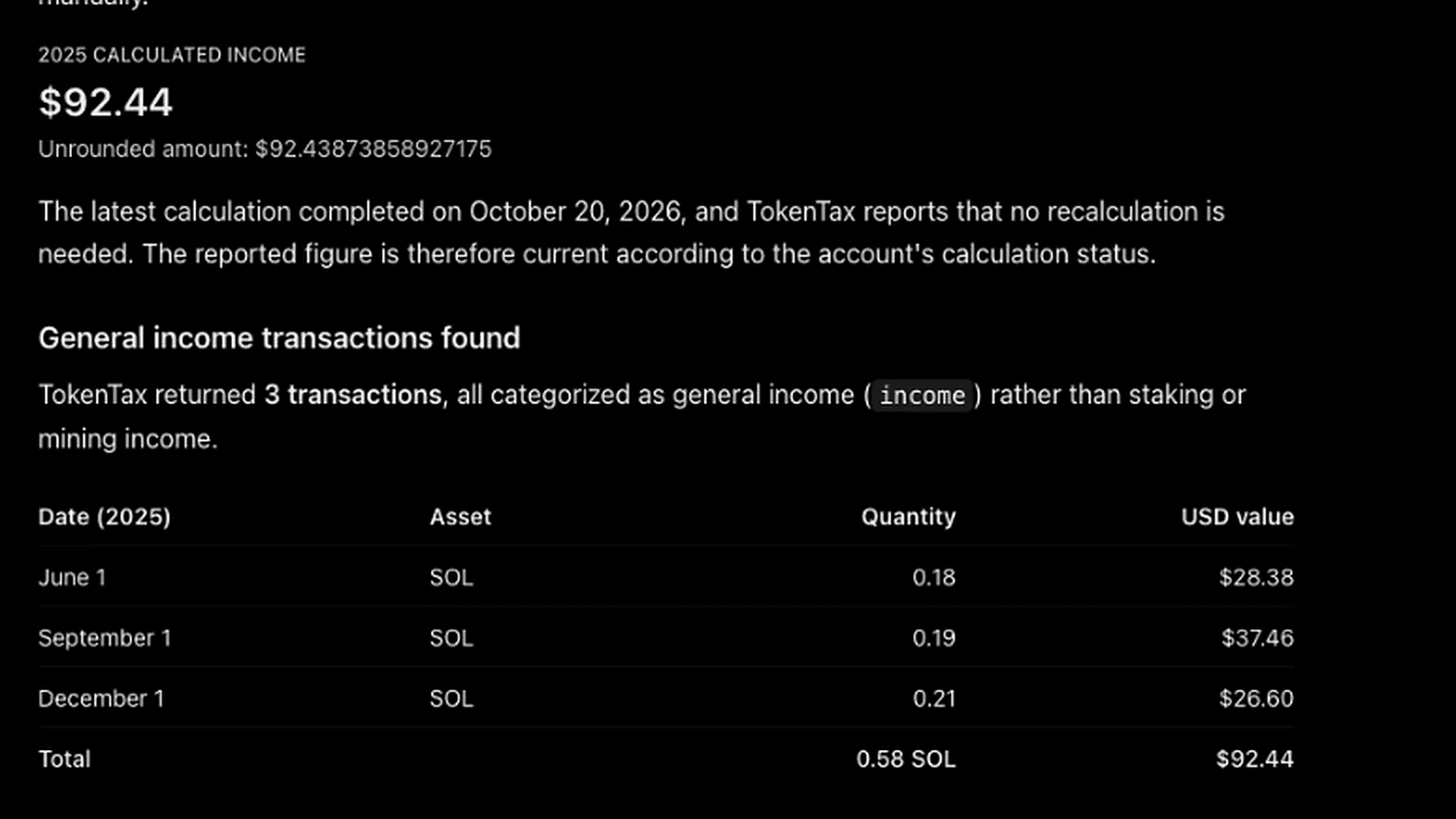
Investigate income. It traced $92.44 in calculated income to three SOL transactions and reconciled their combined value with TokenTax's underlying account data.
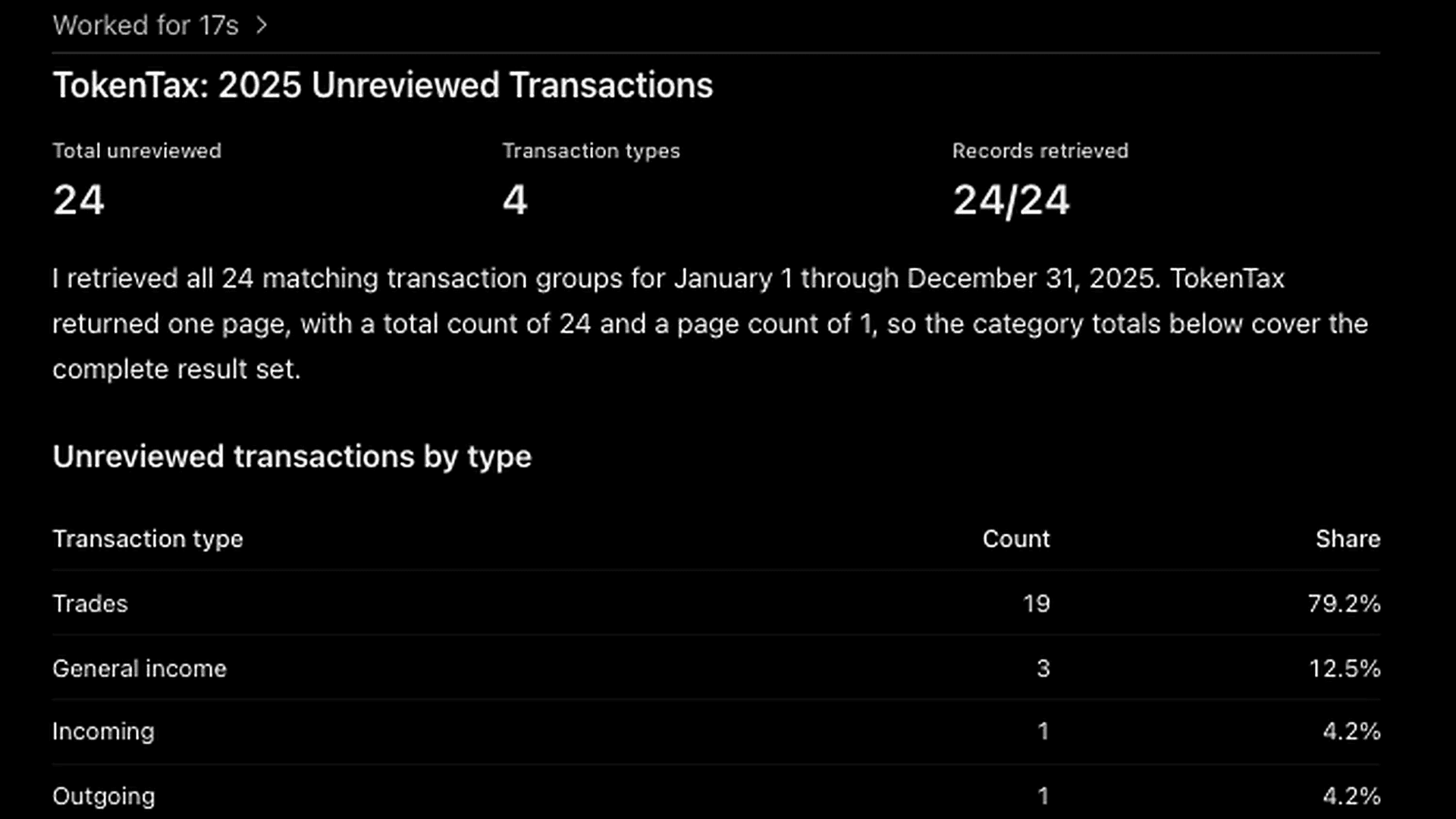
Find transactions needing review. ChatGPT retrieved 24 unreviewed transactions and grouped them into trades, general income, incoming, and outgoing records.
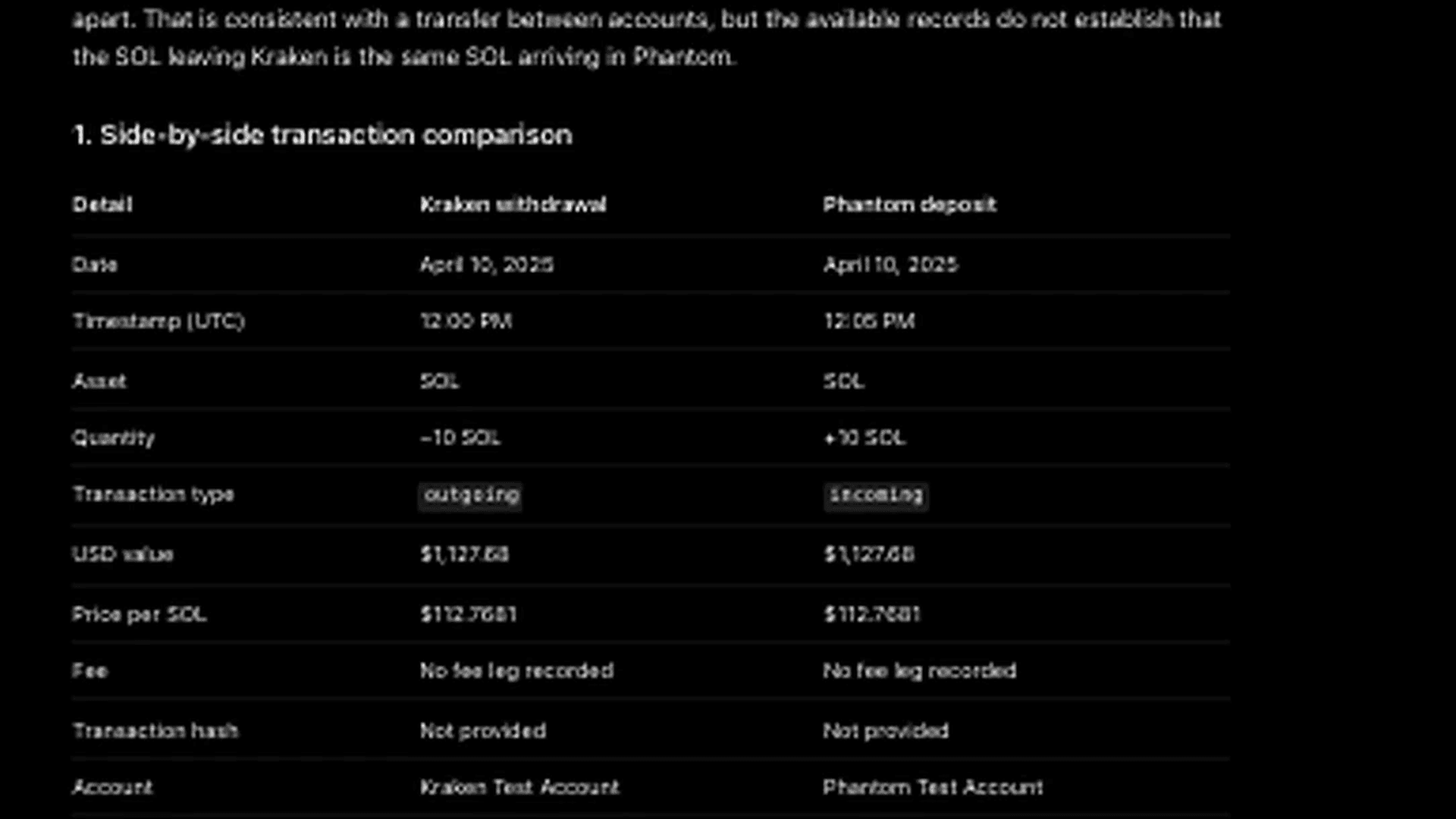
Investigate possible transfers. It compared two 10 SOL transactions recorded five minutes apart and found they weren't linked as an internal transfer.
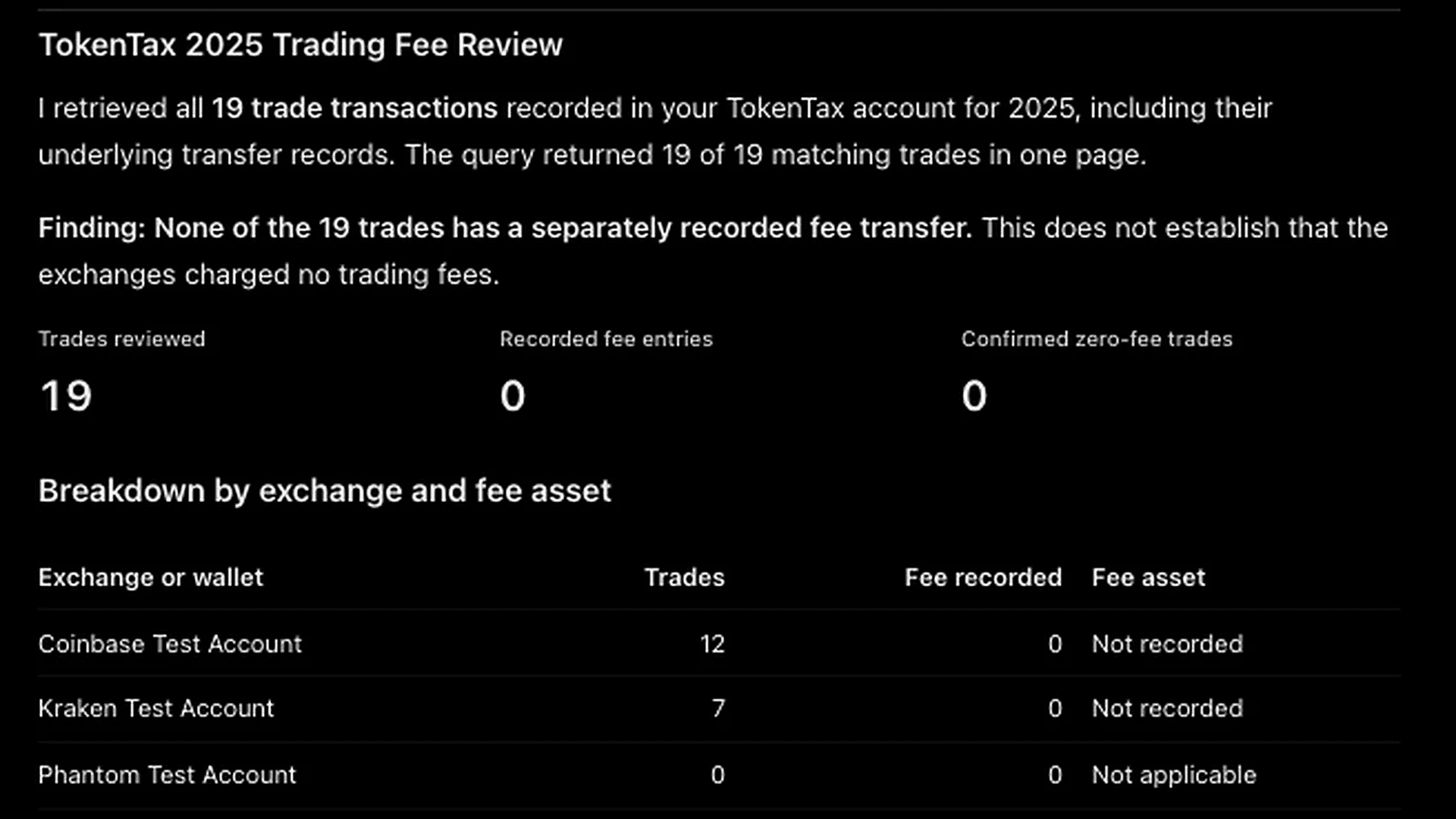
Audit trading fees. It reviewed 19 trades and distinguished missing fee entries from trades confirmed to have zero fees.
Edit a transaction. In a separate October test, ChatGPT Plus successfully updated an existing transaction's description and verified that the change was saved.
All results were checked against the underlying TokenTax account. The transaction investigation tests didn't require modifying account data. The separate editing test involved one explicitly approved description change.
What you need before you connect ChatGPT to TokenTax
You'll need:
A paid TokenTax plan. The MCP integration requires a paid subscription. TokenTax recommends a current-year plan to fully use its features, although some tools may work with other tax years.
Your transaction history in TokenTax. Import your exchanges and wallets before connecting. ChatGPT can only analyze information the integration can retrieve.
Access to ChatGPT's custom MCP feature. We successfully created and tested the connection using ChatGPT Plus on the web. OpenAI's general documentation describes custom MCP access for Pro and eligible Business, Enterprise, and Edu accounts, with different capabilities and permissions.
Our testing establishes that the connection worked on the Plus account we used, including a successful write operation. It doesn't establish that every Plus subscriber has access to the same functionality.
How to connect TokenTax to ChatGPT with a custom MCP server
ChatGPT supports adding remote MCP servers as custom plugins. You enter TokenTax's server address, authorize the connection through OAuth, and then select TokenTax in a conversation.
Here's the setup process we followed.
Step 1: Open Plugins in ChatGPT
Sign in at chatgpt.com on the web and open Plugins.
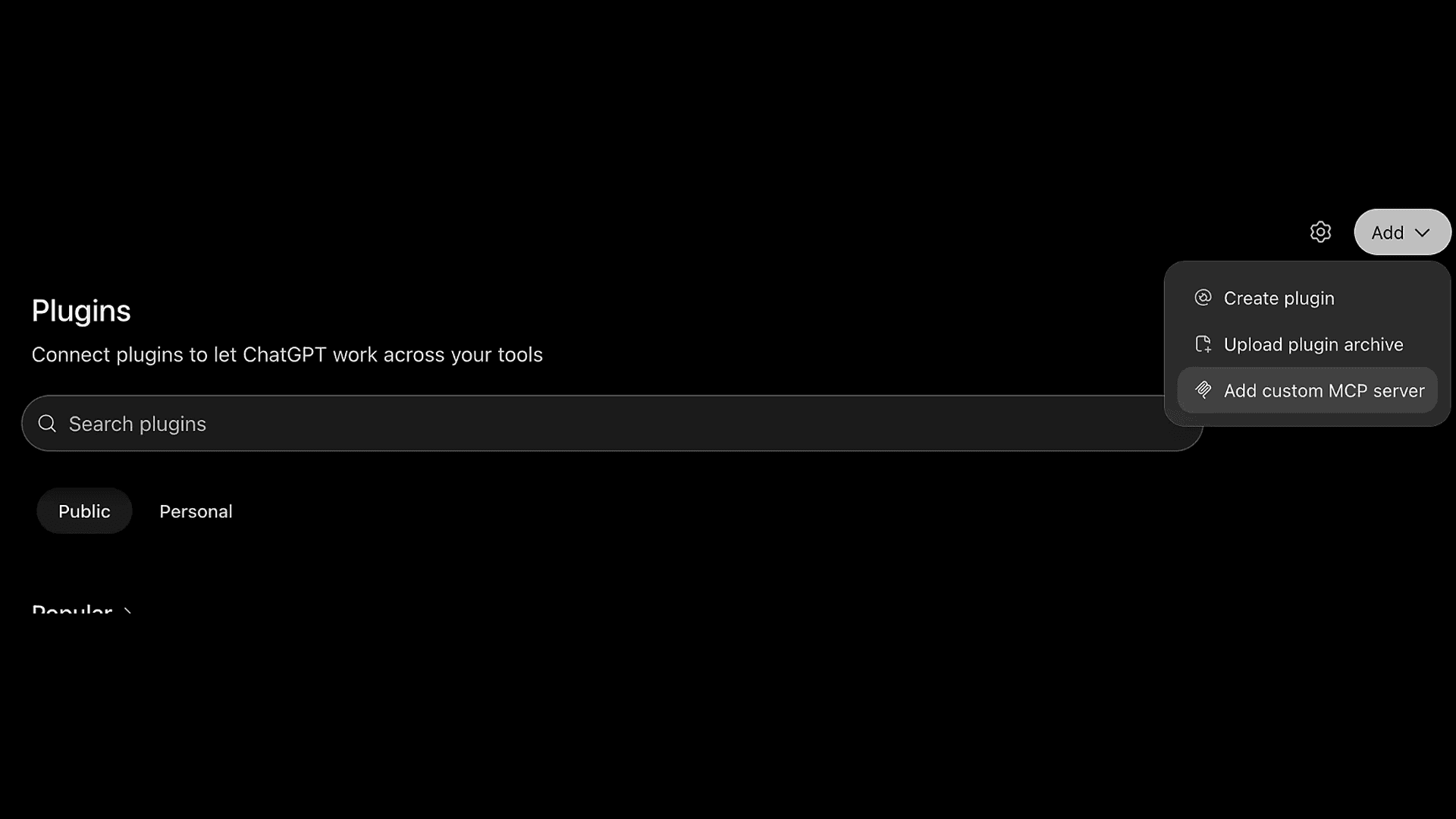
Click Add in the upper-right corner, then select Add custom MCP server.
Step 2: Enter the TokenTax server details
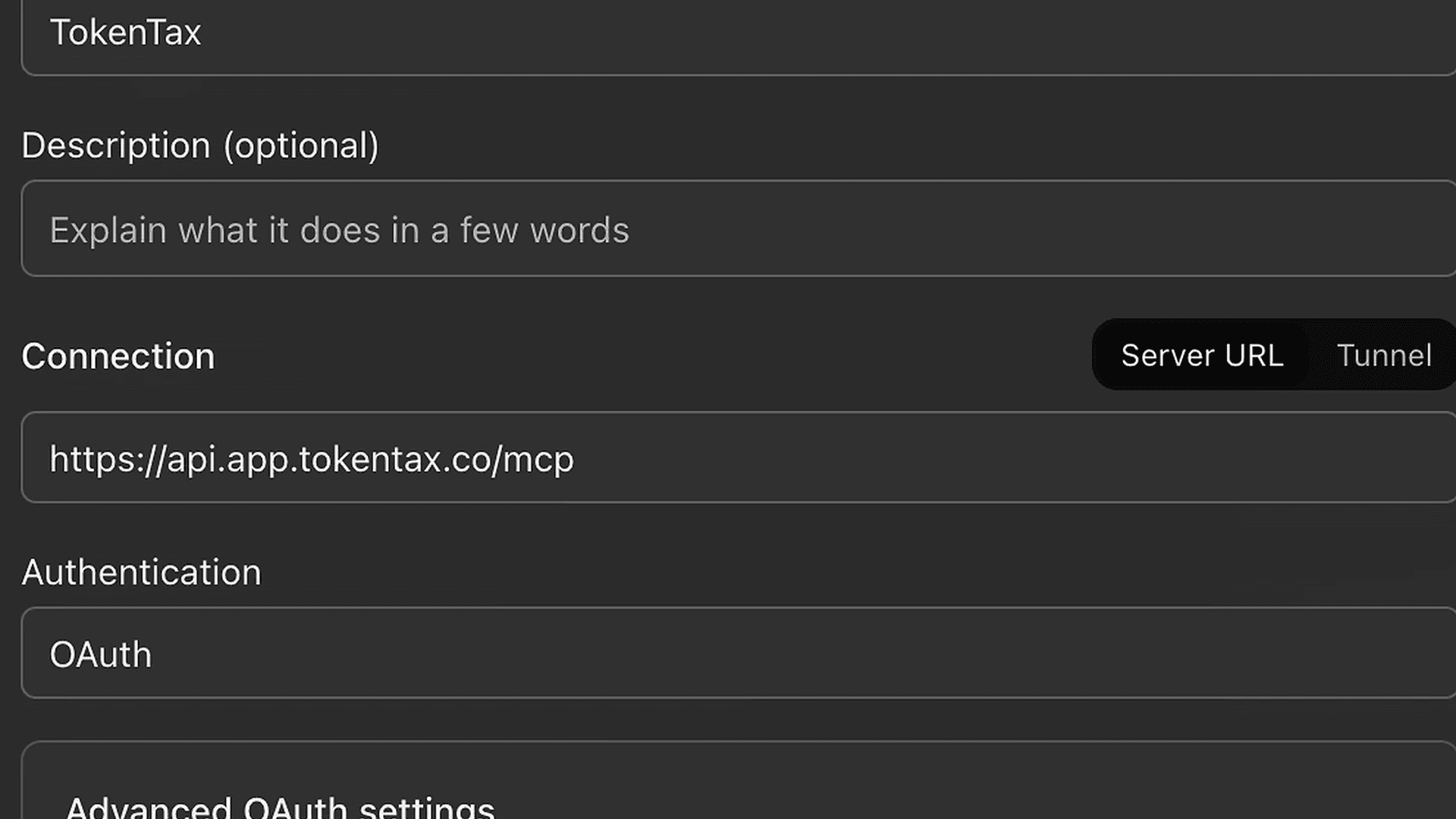
Enter TokenTax as the connection name.
Under Connection, select Server URL and paste:
https://api.app.tokentax.co/mcp
You can also copy the server URL from our setup page.
Choose OAuth under Authentication. The icon and description fields are optional.
Review the security warning, select I understand and want to continue, and click Create as a plugin.
Step 3: Connect your TokenTax account
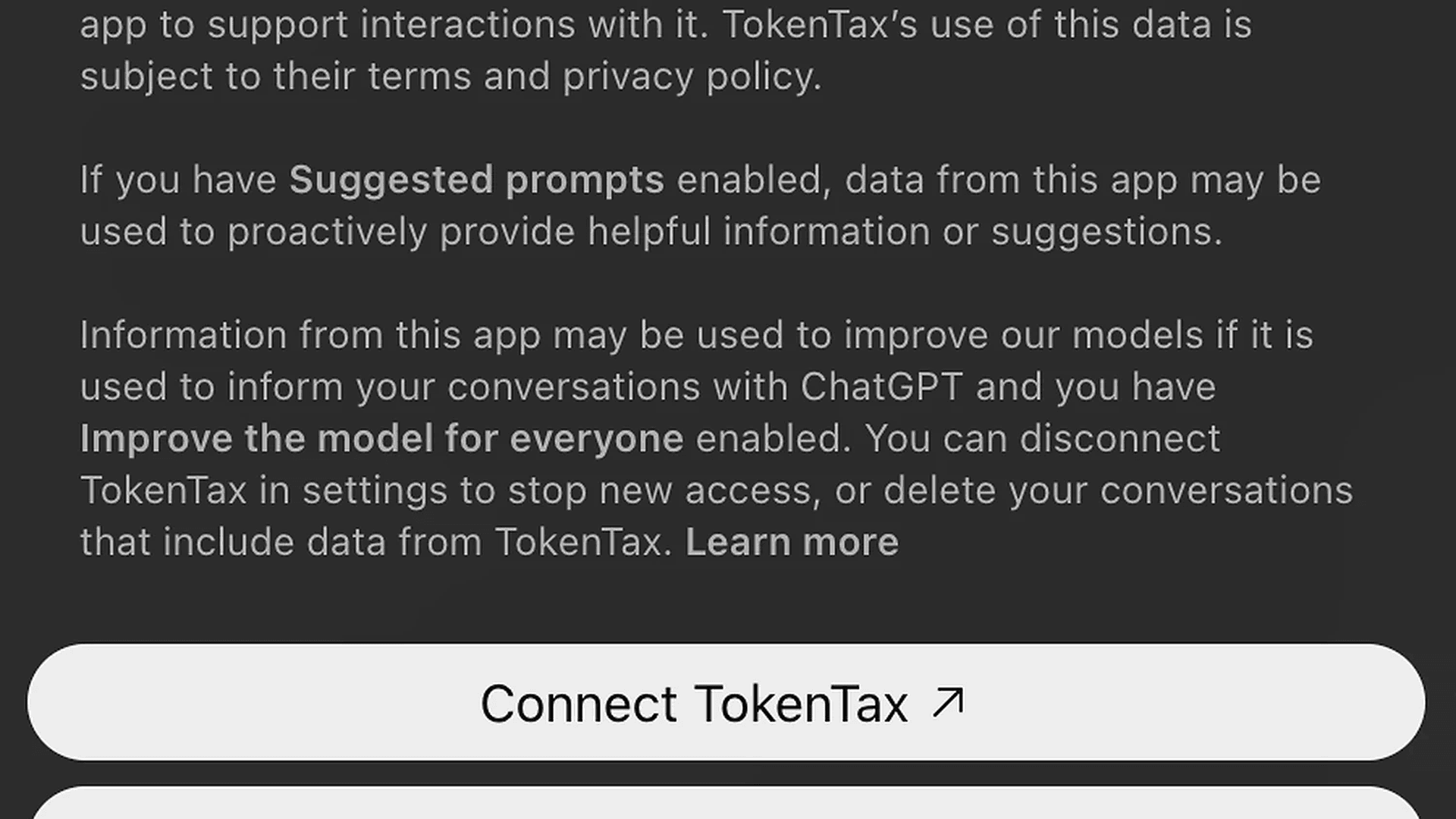
ChatGPT displays a Connect TokenTax window explaining how information may be shared between ChatGPT and the connected application.
Review the disclosure and click Connect TokenTax.
You'll then proceed through TokenTax's authorization process. Sign in if prompted.
Step 4: Authorize access in TokenTax
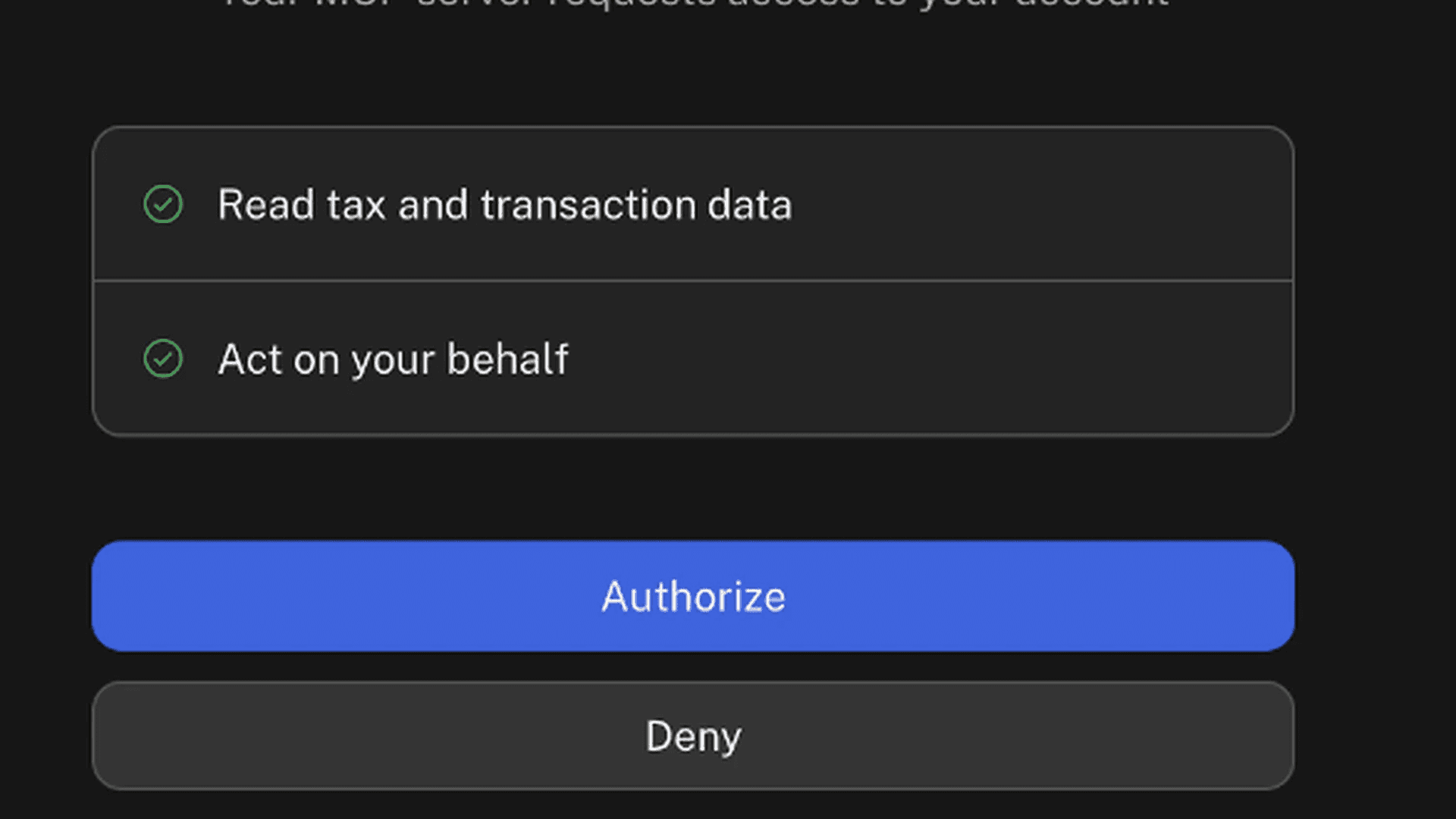
TokenTax asks you to approve two permissions:
Read tax and transaction data
Act on your behalf
Review both permissions before selecting Authorize.
The second permission matters because the server exposes tools that can update certain tax settings or start a recalculation. We'll cover those limitations in the security section.
Step 5: Check the installed plugin
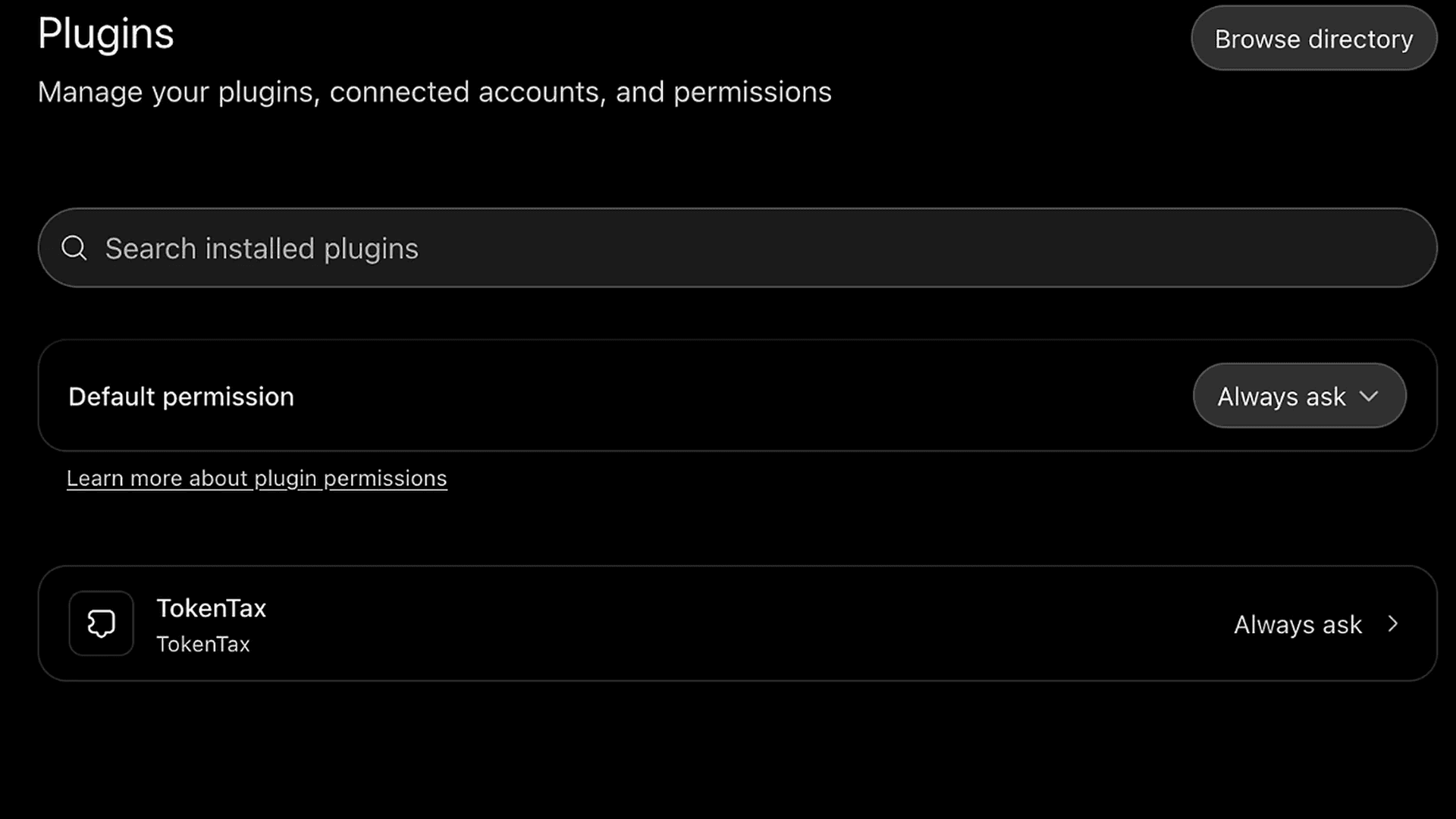
Return to ChatGPT and open your installed plugins.
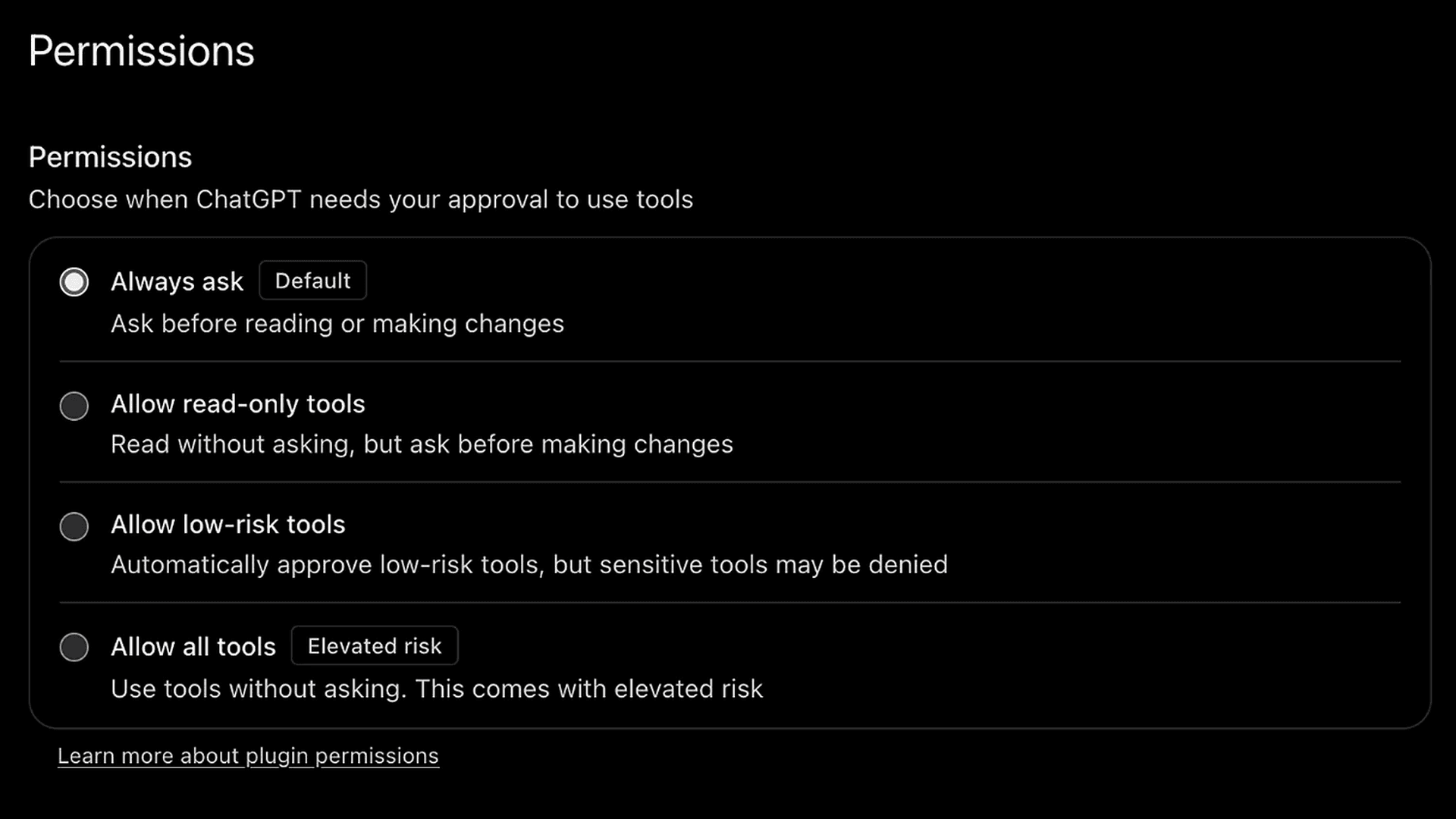
TokenTax should appear as a connected plugin. In our test, its settings confirmed OAuth authentication and displayed Always ask as the default permission setting.
With this option selected, ChatGPT asks for approval before using tools.
Step 6: Start a conversation
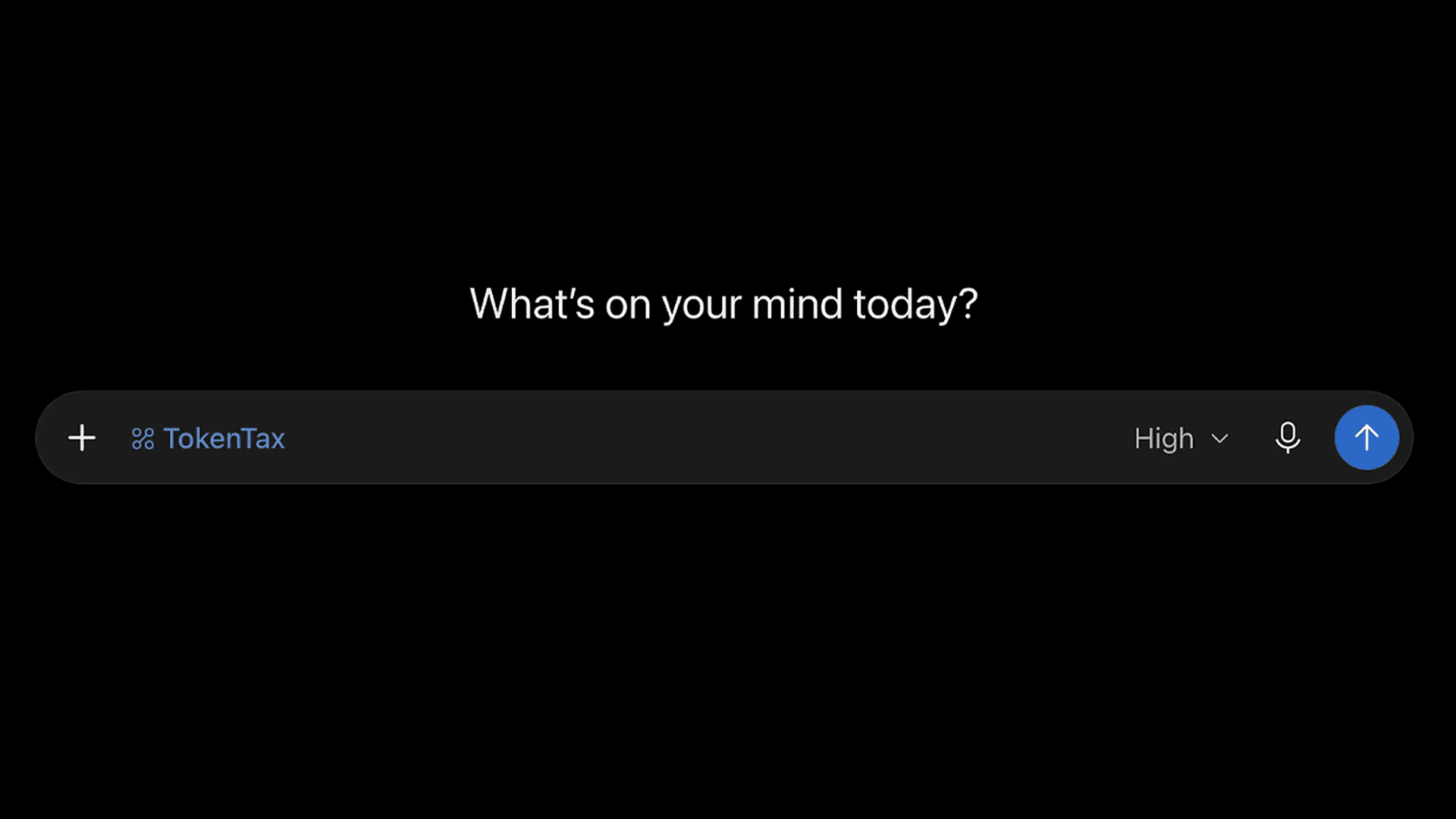
Open a new ChatGPT conversation, type @ in the message box, and select TokenTax.
Our first test asked ChatGPT which tax years were available, which cost basis method each used, and whether the latest tax calculation was up to date.
ChatGPT correctly identified 2025 and 2026, both using FIFO, and confirmed that the latest calculation was up to date. It retrieved the information without changing account settings.
For additional information, see OpenAI's official custom MCP connection instructions.
Example prompts to try in ChatGPT
We ran the following transaction investigation workflows in October, 2026, using ChatGPT Plus and a TokenTax test account with 28 imported transactions across Coinbase, Kraken, and Phantom sources.
The following examples use actual test results. We independently checked the reported transaction counts, income amounts, import information, and recorded fees against TokenTax.
Check whether your exchange and wallet imports are current
Prompt:
"Using TokenTax, list my connected exchanges and wallets. Show the last successful sync for each source and flag any failed or outdated imports. Don't display API credentials or full wallet addresses."
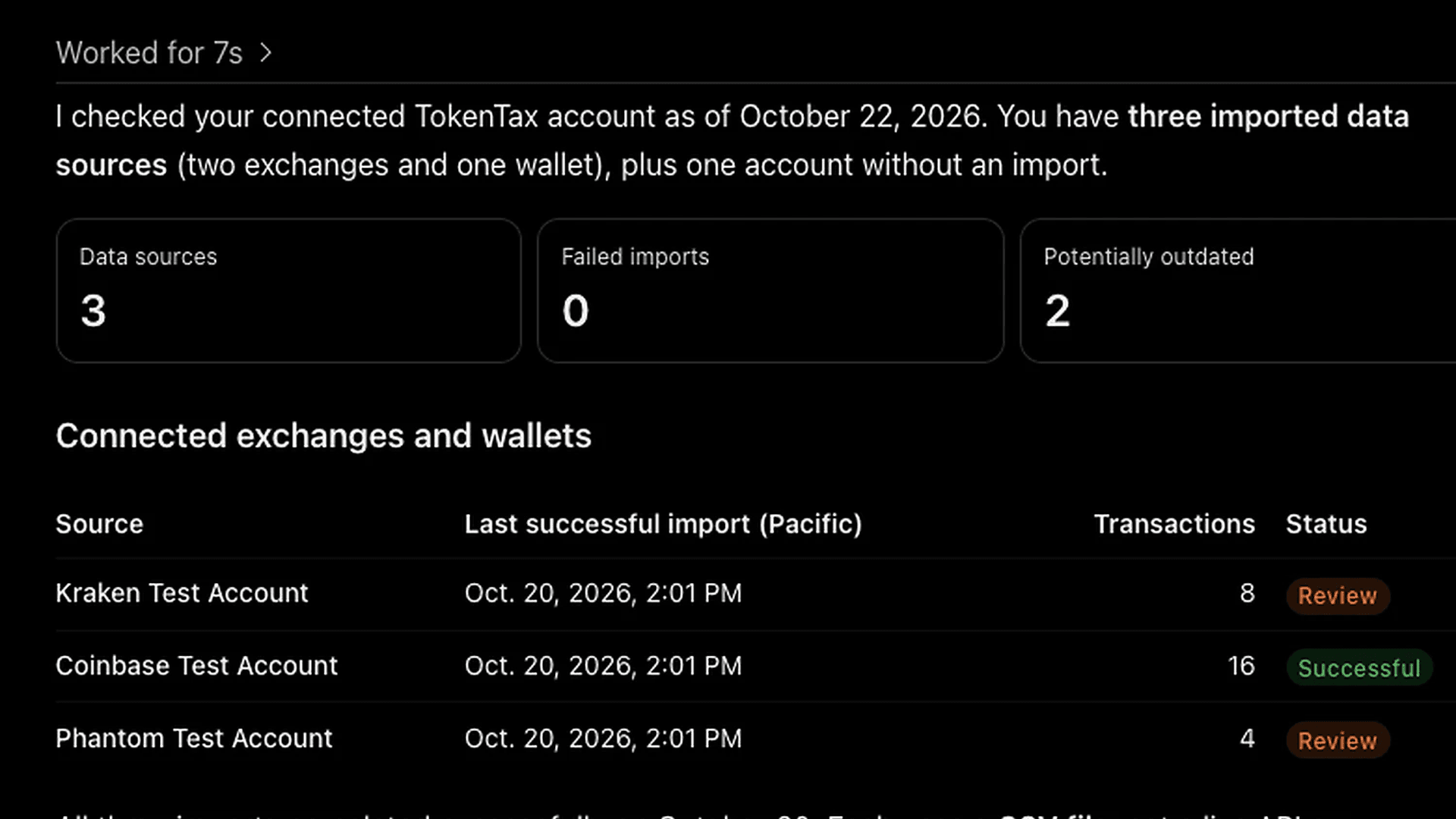
ChatGPT found three successful CSV imports: 16 transactions from Coinbase, eight from Kraken, and four from Phantom.
None had a recorded import failure. However, Kraken's latest imported transaction was from November 2025, while Phantom's history ended around the beginning of December 2025.
That doesn't necessarily mean transactions are missing. It means those sources deserve another look if there was subsequent activity.
The test demonstrated an important distinction: a successfully imported CSV doesn't guarantee that the file contains a complete transaction history.
Investigate an unexplained income total
Prompt:
"Using TokenTax, investigate the $92.44 in calculated income reported for 2025. Find transactions categorized as general income and show their dates, assets, quantities, USD values, and sources. Determine whether those records explain the $92.44 total. Identify any difference rather than guessing. Don't change anything in my account."
ChatGPT identified three SOL income transactions imported through the Phantom test account.
Date | SOL received | USD value |
|---|---|---|
June 1, 2025 | 0.18 | $28.38 |
September 1, 2025 | 0.19 | $37.46 |
December 1, 2025 | 0.21 | $26.60 |
Total | 0.58 | $92.44 |
The transaction values matched TokenTax's calculated income to the cent.
Earlier, ChatGPT had searched for staking and mining income and found no records in those specific categories. This follow-up showed that the $92.44 came from transactions categorized as general income.
The TokenTax dashboard displays a rounded income figure of $92 under its broader income heading, while the underlying account data reports $92.44.
This gives users a way to investigate an income figure without assuming the dashboard's heading reflects the category of every underlying transaction.
Investigate a possible internal transfer
Prompt:
"Using TokenTax, investigate the two SOL transactions on April 10, 2025: 10 SOL leaving my Kraken Test Account and 10 SOL arriving in my Phantom Test Account approximately five minutes later."
We also asked ChatGPT to compare the timestamps, transaction types, accounts, fees, and available transaction hashes without changing the records.
It found two separate transactions:
Detail | Kraken | Phantom |
|---|---|---|
Type | Outgoing | Incoming |
Amount | 10 SOL | 10 SOL |
Time (UTC) | 12:00 PM | 12:05 PM |
Recorded USD value | $1,127.68 | $1,127.68 |
The matching amounts and nearby timestamps suggested a possible internal transfer. However, TokenTax recorded the movements separately, and the imported records didn't include transaction hashes that could independently establish the connection.
ChatGPT therefore flagged the possible match without automatically combining or reclassifying the transactions.
Review trading fees without assuming they're zero
Prompt:
"Using TokenTax, review the trading fees recorded on my 2025 cryptocurrency transactions. Retrieve all matching trade records before calculating totals. Identify which trades have recorded fees, group them by exchange or wallet and fee asset, and show five specific examples."
We also instructed ChatGPT to distinguish transactions without fee entries from transactions confirmed to have zero fees.
ChatGPT retrieved all 19 trades: 12 from Coinbase and seven from Kraken.
None had a separately recorded fee entry. But it didn't interpret that as proof the trades were free.
Instead, ChatGPT explained that actual trading fees couldn't be established from those records. Checking the original exchange CSV files would be necessary to determine whether fees were omitted, included elsewhere, or genuinely zero.
These examples show how ChatGPT can help investigate imported crypto transactions. Results will vary depending on your account data, available tools, and the questions you ask.
Can ChatGPT edit transactions in TokenTax?
Yes. TokenTax released additional MCP tools for editing and creating transactions after our initial investigation tests.
In October, 2026, we successfully executed the editTransaction tool through ChatGPT Plus using the same synthetic test account.
The test involved a June 1, 2025 SOL income transaction with a previously blank description. After we explicitly approved the proposed change, ChatGPT added the description [ChatGPT Plus MCP write test].
TokenTax returned a successful response confirming that the edit had been applied. ChatGPT then retrieved the transaction again and verified that the new description was saved.
The original transfer remained intact, including its 0.18 SOL quantity, price, account assignment, and tax classification. No transfers were added or removed.
However, there was an unexpected result. The description-only edit caused TokenTax to flag the account as needing recalculation, even though its displayed income and capital-gain figures didn't change. No recalculation was initiated.
This confirms that an actual transaction edit worked through the ChatGPT Plus connection we tested. It doesn't establish that every Plus subscriber or TokenTax account has access to the same write functionality.
Is it safe to connect TokenTax to ChatGPT?
TokenTax uses OAuth, so you authorize the connection through TokenTax rather than sharing your password directly with ChatGPT.
However, the integration can share sensitive financial information, including transaction details, account information, and calculated tax figures. Review the authorization screen before approving access.
In our October 2026 testing, the TokenTax MCP connection exposed 15 tools, including four that could modify account data:
Update Tax Info: Changes the cost basis method or selected tax rates for an eligible, unlocked tax year.
Start Recalculation: Starts a new tax calculation using the account's saved settings.
Edit Transaction (
editTransaction): Modifies an existing transaction, including its description or supported financial fields.Create Transactions (
createTransactions): Adds new transactions to the account.
We successfully tested transaction editing through ChatGPT Plus. With our approval, ChatGPT updated the description of a SOL income transaction, and TokenTax confirmed the change was saved. A follow-up check found that the transaction's quantity, price, classification, and other financial details remained unchanged.
However, the description-only edit caused TokenTax to flag the account as needing recalculation, despite no change to the displayed tax figures. We did not test the other three write tools.
One important limitation is that TokenTax doesn't currently require a separate confirmation before applying changes through MCP. Once an authorized tool executes, the change takes effect. Whether ChatGPT asks for permission first depends on the plugin's settings and the action involved.
The editTransaction tool also requires the complete list of existing transfers when submitting a change. Leaving a transfer out could cause it to be marked as deleted, so proposed edits deserve careful review.
ChatGPT offers four plugin permission settings:
Always ask: Requests approval before using tools.
Allow read-only tools: Permits read operations without asking while retaining approval requirements for other actions.
Allow low-risk tools: Automatically approves certain lower-risk operations.
Allow all tools: Permits tool execution without individual approval prompts, subject to applicable restrictions.
We recommend keeping Always ask selected when working with financial data. That provides an opportunity to review actions before ChatGPT executes them.
You should also review OpenAI's privacy policy and your ChatGPT data controls before connecting. To revoke TokenTax's authorization, visit TokenTax Profile Settings.
Troubleshooting TokenTax in ChatGPT
I can't find the custom MCP server option in ChatGPT
Open ChatGPT on the web and look under Plugins → Add → Add custom MCP server.
Availability depends on your account and workspace permissions. We successfully tested this process using ChatGPT Plus, although feature access may differ for other users.
OpenAI also documents custom MCP connections for Pro and eligible organizational accounts. The supported actions can differ depending on the plan and workspace configuration.
ChatGPT asks me for an API key
The TokenTax connection uses OAuth rather than a manually pasted API key.
Check that you've entered https://api.app.tokentax.co/mcp and selected OAuth as the authentication method.
Don't paste your TokenTax password or exchange API credentials into ChatGPT.
I connected but see a paid-plan message
TokenTax requires a paid plan for MCP access. A current-year plan is recommended to fully use the integration's features, although some tools may work with other tax years.
Your ChatGPT subscription and TokenTax subscription are separate.
ChatGPT can't find some of my transactions
Check whether those transactions appear in TokenTax first.
In our testing, all three CSV imports were successful, but two sources contained transaction histories ending in 2025. A successful import doesn't establish that every transaction was included.
Also, check whether your latest TokenTax calculation is up to date. If you've recently edited transactions, your account may need recalculation before the displayed tax figures reflect those changes.
ChatGPT won't edit my transactions
TokenTax supports transaction editing through its editTransaction tool. In our testing, ChatGPT Plus successfully changed a transaction description and verified that the update was saved.
If ChatGPT can't edit your transactions, check whether editTransaction appears among the available tools and whether your plugin permissions allow write operations. Reconnecting or reauthorizing TokenTax may be necessary if the tool isn't available.
TokenTax doesn't currently require a separate in-app confirmation before applying MCP changes. Review proposed edits carefully before approving them in ChatGPT.
TokenTax ChatGPT MCP server FAQs
Can ChatGPT do my crypto taxes?
Do I need a TokenTax API key to use ChatGPT?
Does ChatGPT need a paid plan to connect TokenTax?
Can ChatGPT change or delete my TokenTax data?
Will ChatGPT's answers match my TokenTax reports?
What other AI apps work with TokenTax?
Results depend on the data imported into your TokenTax account. AI responses are not tax advice; review figures and proposed changes in TokenTax before filing.
To stay up to date on the latest, follow TokenTax on Twitter @tokentax.
